Free Printable Checklist TemplateType your items or start from a ready-made list, tick what is done, then print it or save it as a PDF. No sign-up, and nothing you type is uploaded.
Layout
Whole page · the printed page has no watermark or logo.
Examples2 layouts filled in with made-up details. Open one to start with that layout, or print a blank template to fill in by hand.
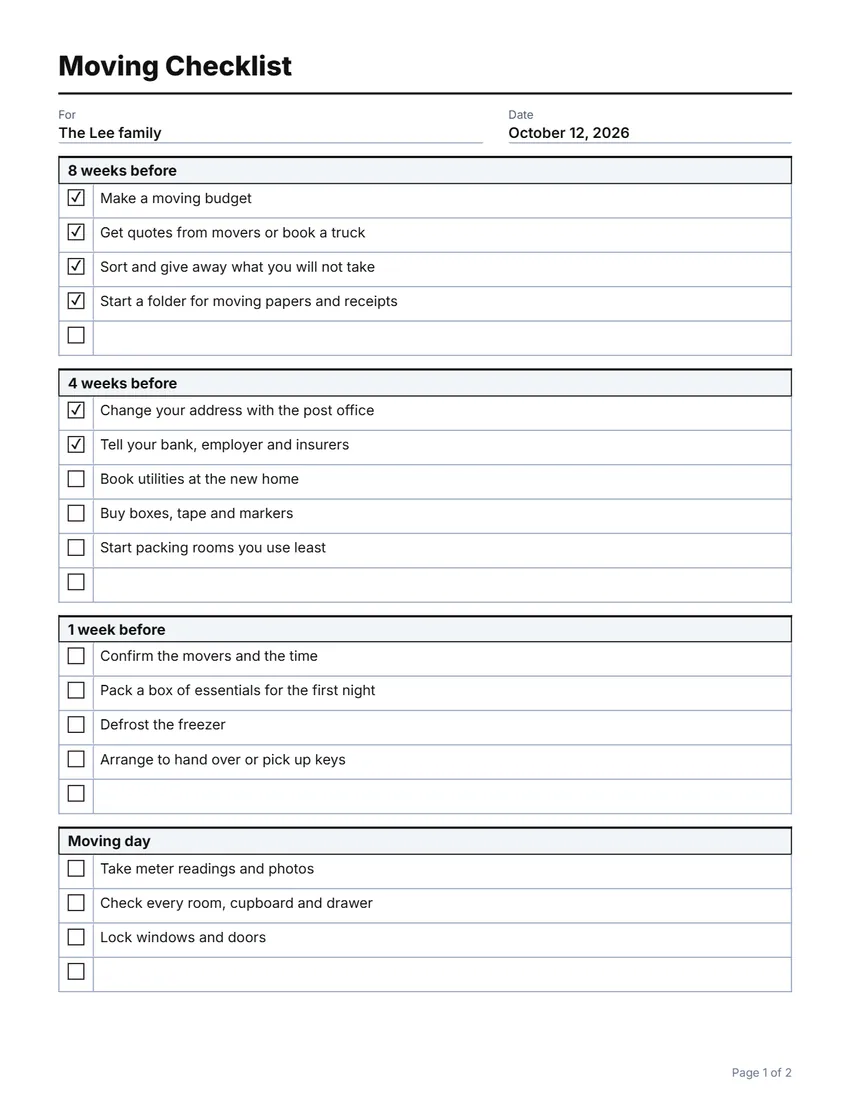 Default layout
GridA ruled table: every item boxed.
Start with this layoutOpen
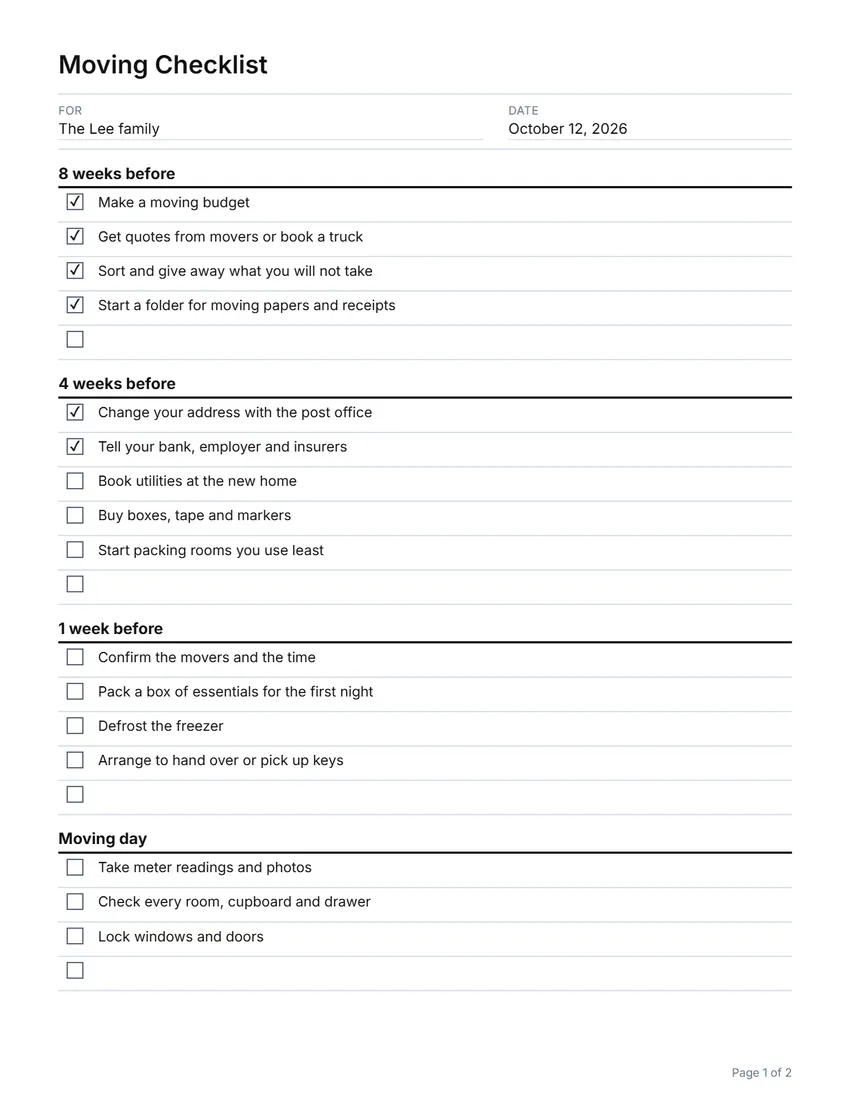 Layout
LinedLight rules between items. Uses less ink.
Start with this layoutOpen
Prefer to fill it in by hand? Print a blank template and write on it.
Related tools
Goes well with this one
Was this tool useful?
Notice: Generated via SnapPaperwork. For your own lists, home, team or business.
Something missing? Tell me what you need.
How to make a printable checklist in 3 steps
-
Start from a list or from scratch
Pick a ready-made list (to-do, moving, party, opening and closing, new employee, before a trip) or a blank one, and give it a title.
-
Add your items
Type each item, group them under section headings, and tick anything already done. Add a notes or “date done” column and blank rows to write in.
-
Print it and tick as you go
Print it or save it as a PDF, keep it where you will see it, and tick each box when it is done.
The ready-made lists
Each one is a starting point: rename, add or remove anything.
- To-do list: eight empty lines under one heading, to fill in on screen or by hand
- Moving checklist: from eight weeks before to after the move
- Party planning: four weeks before to the day itself
- Opening and closing: a shop’s opening, during-the-day and closing tasks
- New employee: before the first day to the end of the first month
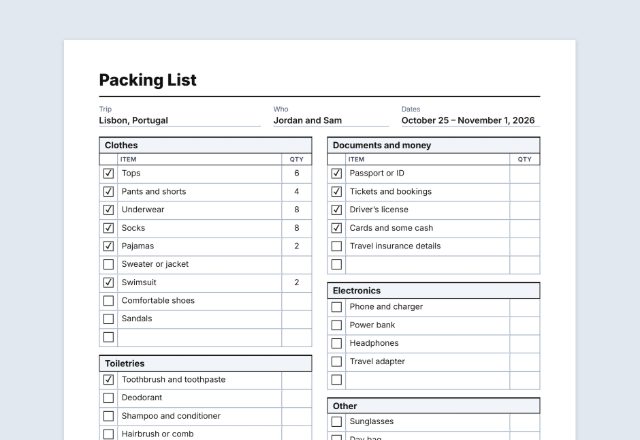
- Before a trip: a week before, the day before and before you walk out the door
Tips for a checklist that gets used
- Start each item with a verb (“Book the movers”, “Count the cash drawer”) so it says exactly what to do.
- Keep items small enough to finish in one go; split big jobs into steps.
- Group items by time (this week, moving day) or by place (kitchen, front counter), not both.
- For a routine such as opening and closing, print a fresh copy each day and add a “date done” column or initials.
- Leave a few blank rows for the things you think of later.
Frequently asked questions
Is this checklist maker free?
Yes. It is free to use, needs no account or sign-up, and never adds a watermark or a SnapPaperwork logo to your checklist.
Can I tick items before I print?
Yes. Click a box on the page (or tap it on a phone), or tick it in the form. The tick is printed, so you can share a list with some items already done.
Can I make a blank checklist to fill in by hand?
Yes. Choose the to-do or blank list, leave the items empty, and add blank rows: every line gets an empty box to tick by hand.
How many items can a checklist have?
Up to 20 sections of 30 items each. A long list runs over several pages, each with its own margins and page number, and a section that carries on is marked “(continued)”.
Can I add a notes column or a date column?
Yes. Turn on the notes column to type a note for each item, and the “date done” column for a blank box to write the date in.
Is my information uploaded or stored on your servers?
No. Everything you type stays in your browser and is never sent to me. It is saved on your own device so it is there next time.