Free Loyalty Punch Card TemplateFill in the form, check the preview, then print on business-card sheets or card stock. No sign-up, and nothing you type is uploaded.
Design
Whole page · the printed page has no watermark or logo.
Examples3 layouts filled in with made-up details. Open one to start with that layout, or print a blank template to fill in by hand.
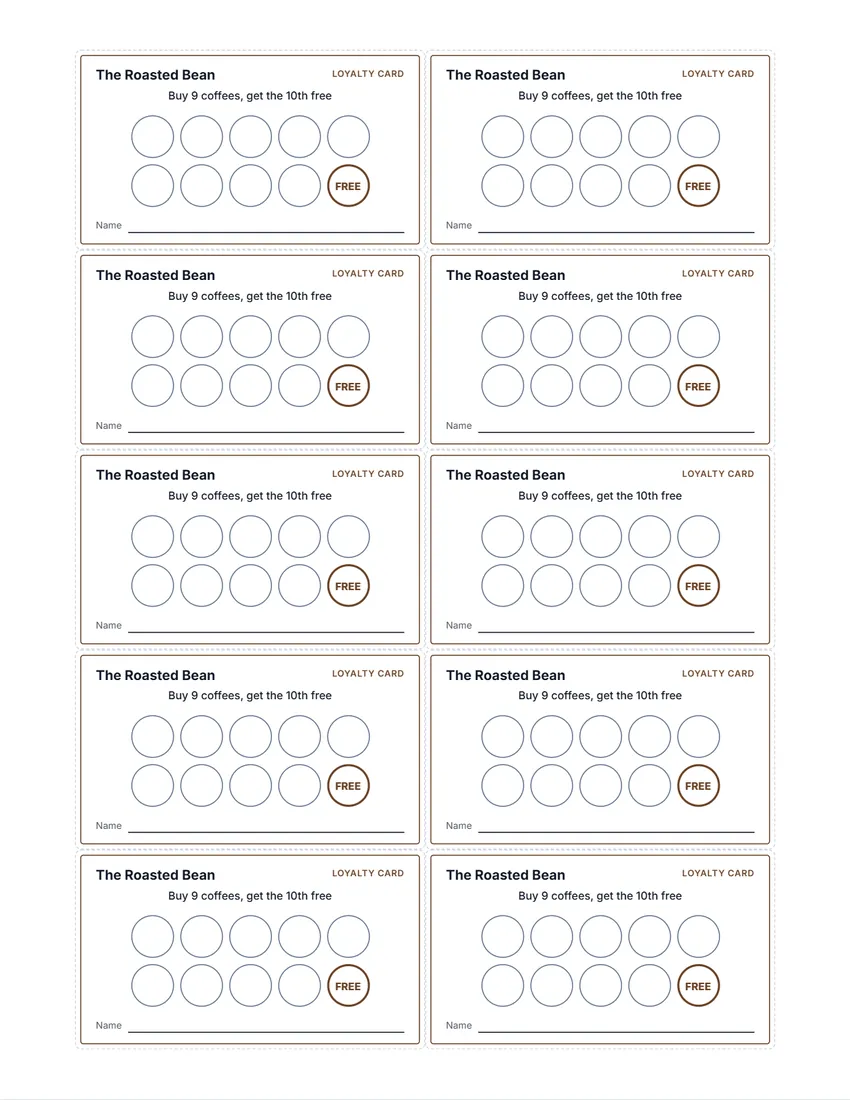 Default layout
ClassicA thin coloured frame, your name and the circles to stamp.
Start with this layoutOpen
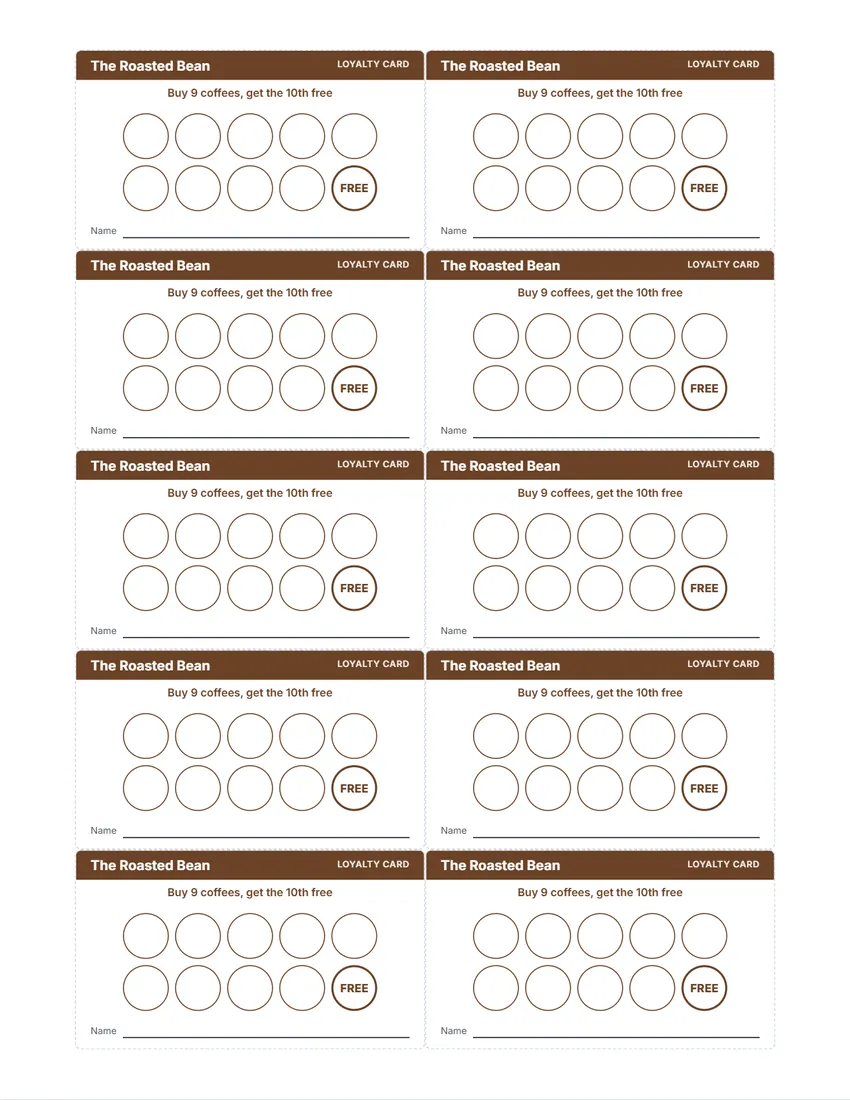 Layout
BoldA band of colour with your name in white, and a solid coloured back.
Start with this layoutOpen
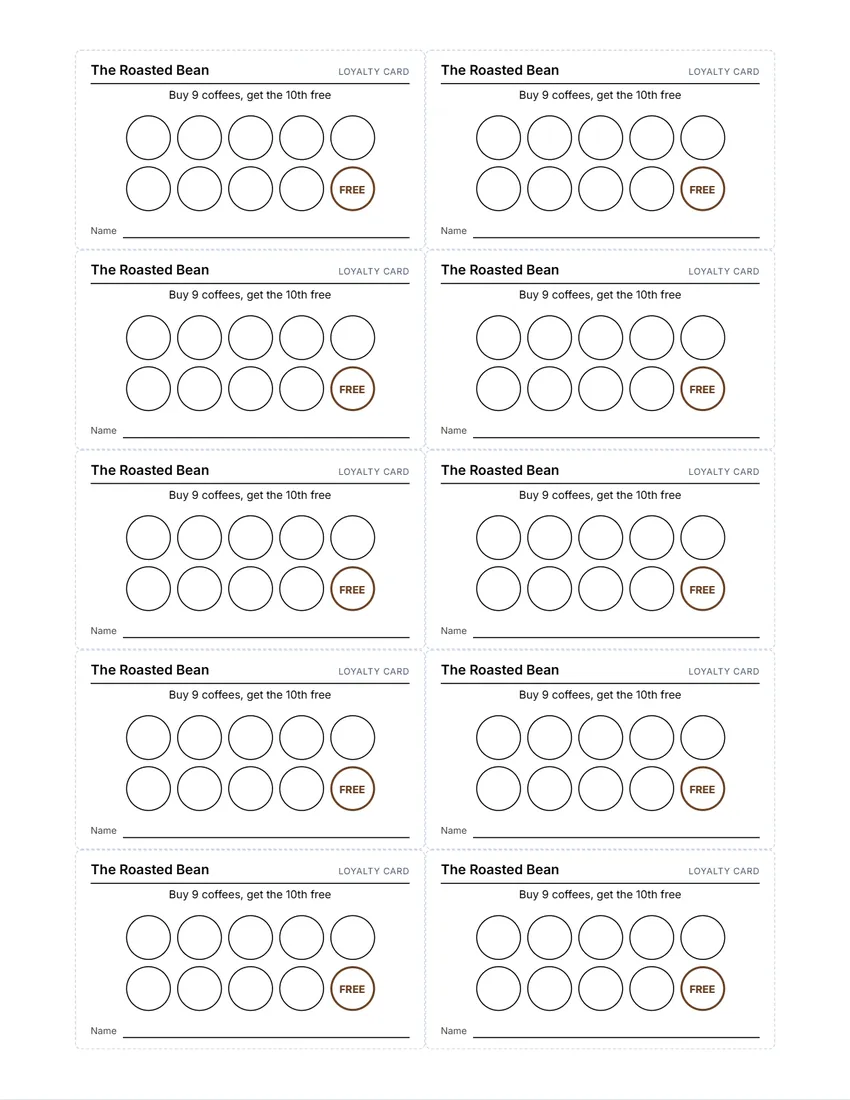 Layout
SimpleBlack and white, no logo: quick and cheap to print.
Start with this layoutOpen
Prefer to fill it in by hand? Print a blank template and write on it.
Related tools
Goes well with this one

Was this tool useful?
Notice: Generated via SnapPaperwork. For your own business’s loyalty cards. Do not copy another business’s cards, or stamp cards to claim rewards that were not earned.
Something missing? Tell me what you need.
How to make punch cards in 3 steps
-
Name the reward
Your business name, logo and the deal, such as “Buy 9 coffees, get the 10th free”, then how many circles to stamp and whether the last one says FREE.
-
Add a back if you like
Your address, opening hours, phone or website and the small print, printed on the back of each card.
-
Print and cut
Print on business-card sheets (10 per page) or card stock, at actual size. Cut along the lines, or tear along the perforations.
What to put on a loyalty card
- Your business name and logo, so the card is easy to find in a wallet
- The reward, in a few words: what the customer buys, and what they get
- One circle per visit or purchase, and a clear last circle for the reward
- A line for the customer’s name, so lost cards can be returned
- On the back: your address, opening hours and phone or website
- Short small print: one stamp per visit, no cash value, and whether the offer can end
Paper, sizes and printing both sides
- Business card size (3½ × 2 in on Letter, 85 × 54 mm on A4), 10 per page: the right size for a wallet. The cards are laid out like perforated business-card sheets.
- Large cards (about 3¾ × 2½ in), 8 per page: more room for circles and big stamps, cut from card stock.
- Matte card stock takes rubber-stamp ink and pen best; glossy paper smudges.
- For a back, print the front page, turn the sheet over and print the back page (or use your printer’s two-sided setting, flipping on the long edge). Test on plain paper first.
- Print at 100% (“Actual size”), not “Fit to page”, so the cards line up with the perforations.
Running a punch card program
- Use a stamp or hole punch only you have (a shape, not a plain dot), so customers cannot fill in their own cards.
- Ten circles with the tenth free is the classic; fewer circles for bigger purchases.
- Keep a few cards at the till and hand one over with the first purchase, already stamped.
- Decide what happens to a lost card, and say it in the small print.
- If you change or end the offer, honour the cards already handed out.
Frequently asked questions
Is this punch card maker free?
Yes. It is free to use, needs no account or sign-up, and never adds a watermark or a SnapPaperwork logo to your cards.
What size are the cards?
Business card size: 3½ × 2 inches on US Letter, or 85 × 54 mm on A4, 10 per page. Large cards, about 3¾ × 2½ inches, come 8 per page.
Can I print on business card sheets?
Yes. On Letter paper the cards are placed like most perforated business-card sheets, 2 across and 5 down. Print one test page on plain paper first and hold it against your sheet to check it lines up.
How many circles can a card have?
From 4 to 20. They are sized to fill the card, in even rows. Tick “The last circle says FREE” to mark the reward.
Can I print a back on the cards?
Yes. Tick “Print a back” and add your address, hours, phone or website and small print. Each page of fronts is followed by a page of backs, to print on both sides.
Can customers write their name on the card?
Yes, there is a name line you can keep or remove, and an optional line for an expiry date.
Can I add my logo?
Yes. Upload a PNG or JPG; it appears on the front and the back in the Classic and Bold designs. It stays in your browser and is never uploaded.
Are my details uploaded or stored on your servers?
No. Everything you type, and your logo, stays in your browser and is never sent to me. The form is saved on your own device so it is there next time.
How do I save the cards as a PDF?
Click “Print / Save PDF” and choose “Save as PDF” as the printer, or click “Download PDF” to save a file straight to your phone or computer, one page per sheet. “Share” opens your device’s share menu with the PDF attached.