Free Weekly Work Schedule TemplateAdd your staff and a shift for each day, check the hours, then print the schedule or save it as a PDF to share. No sign-up, and nothing you type is uploaded.
Layout
Whole page · the printed page has no watermark or logo.
Examples3 layouts filled in with made-up details. Open one to start with that layout, or print a blank template to fill in by hand.
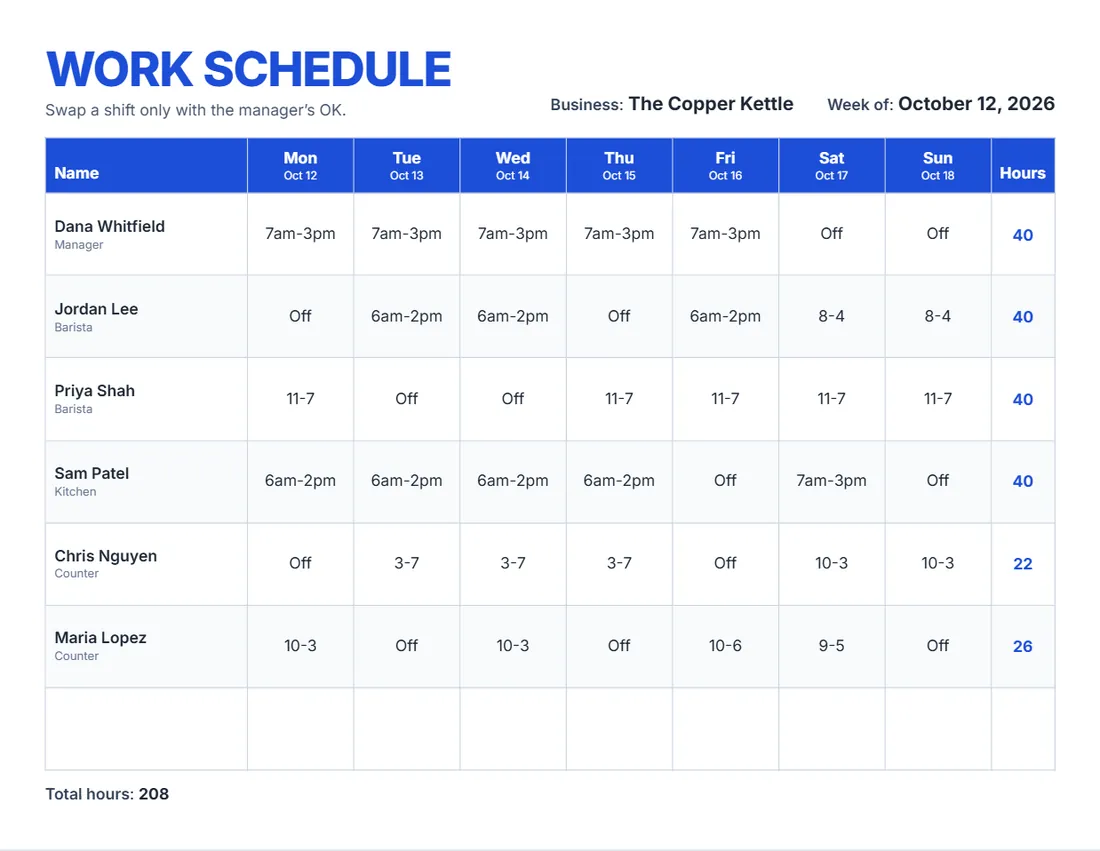 Default layout
BrightA big title and a header row in your colour.
Start with this layoutOpen
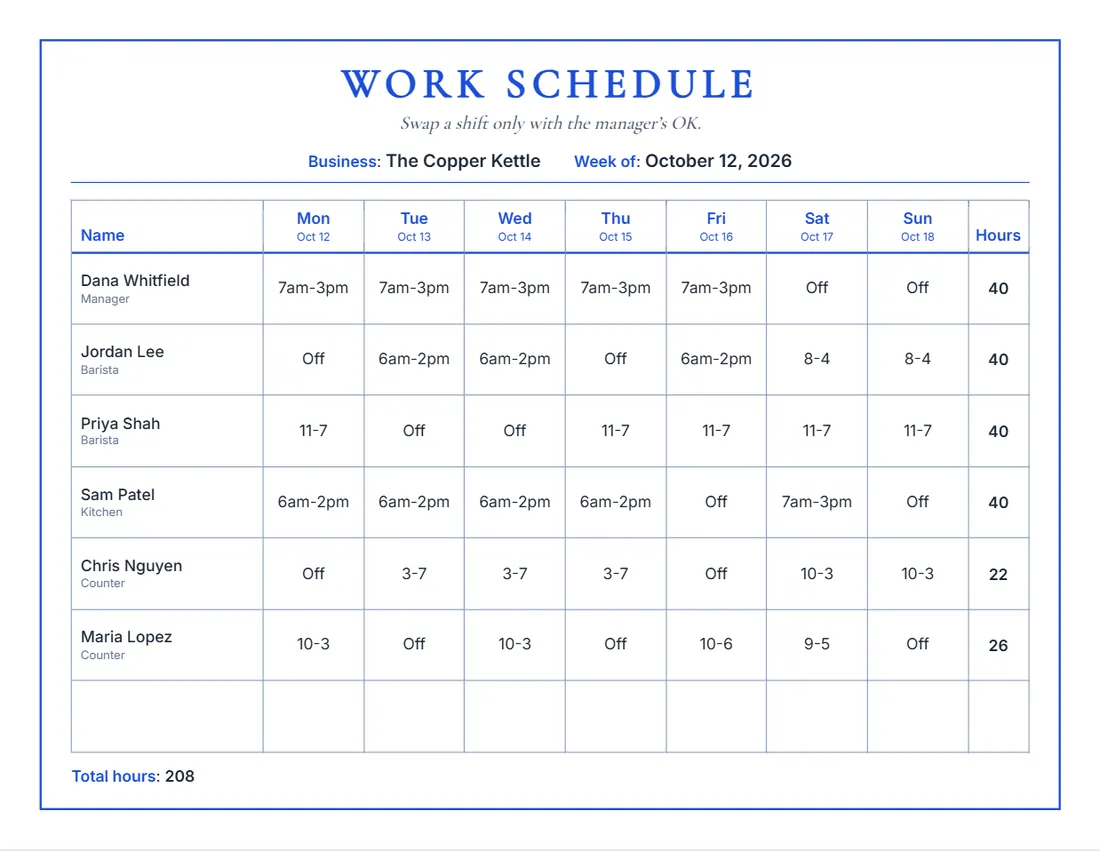 Layout
ClassicA serif title, a frame and day names in your colour.
Start with this layoutOpen
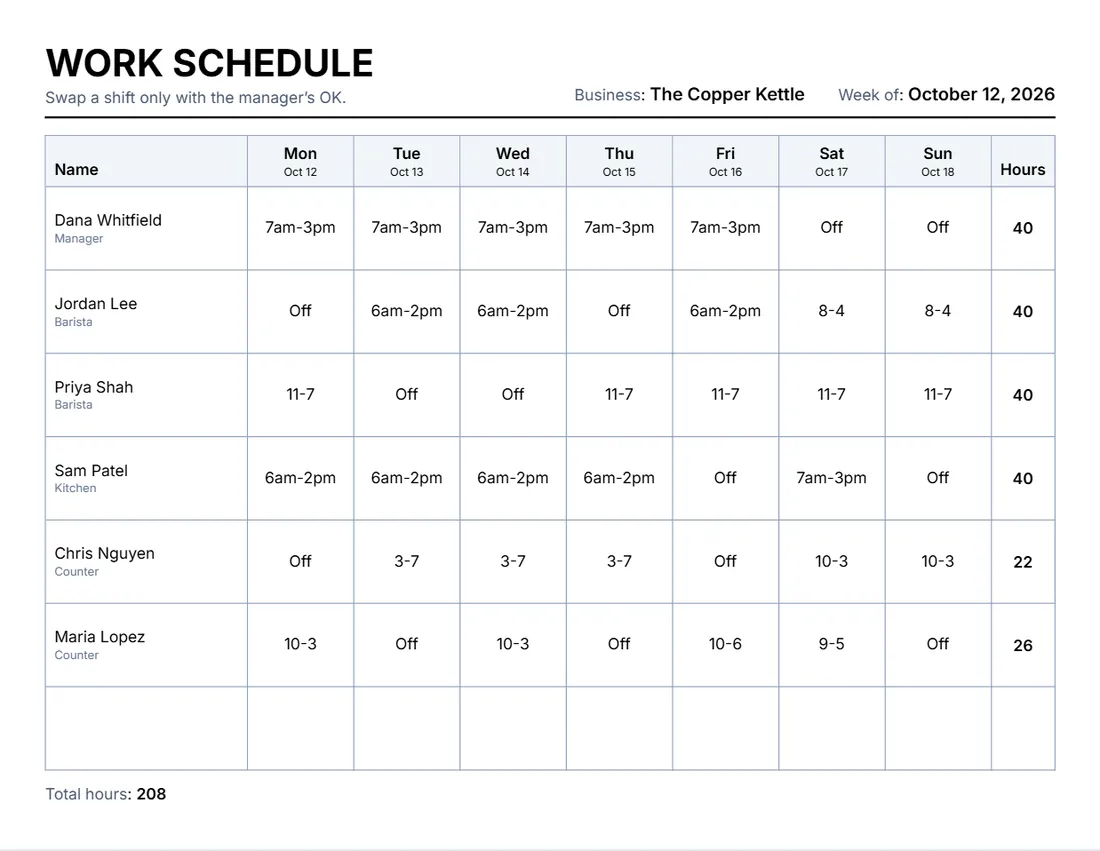 Layout
SimpleBlack and grey, a thin grid. Least ink.
Start with this layoutOpen
Prefer to fill it in by hand? Print a blank template and write on it.
Related tools
Goes well with this one
Was this tool useful?
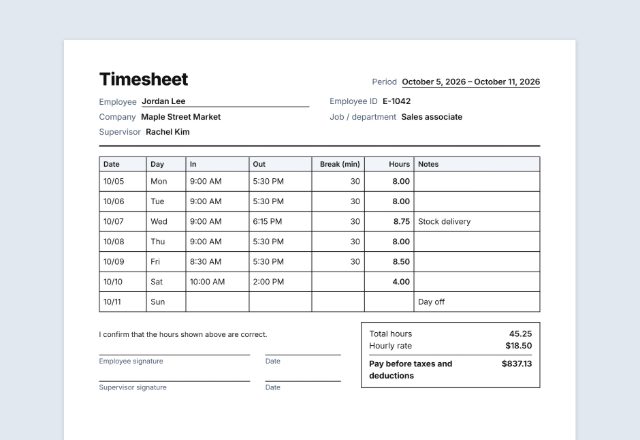
Notice: Generated via SnapPaperwork. For planning your own team’s shifts. It is not a record of hours worked; use a timesheet for that.
Something missing? Tell me what you need.
How to make a work schedule in 3 steps
-
Add the week and your team
The business, the week (dates go over the days) and each person with their role.
-
Write the shifts
A shift like 9-5 or 7am-3pm in each day, or a word such as Off or On call. Each person’s hours and the total are added up.
-
Post it and share it
Print it for the staff room, or save it as a PDF and share it in your team chat. Print a blank one to fill in by hand.
Tips for a fair schedule
- Post the schedule as early as you can, so people can plan their week.
- Spread the weekend and closing shifts around the team.
- Leave enough time between a closing shift and the next opening shift.
- Check the hours column for anyone close to overtime before you post.
- Keep last week’s schedule: it helps when you plan the next one and answer questions about pay.
Good to know
Rules on breaks, rest between shifts, overtime and how much notice to give about schedules depend on where you are; some cities and states have their own. Check the rules that apply to your business. The schedule is a plan; record the hours actually worked on a timesheet.
Frequently asked questions
Is this work schedule maker free?
Yes. It is free to use, needs no account or sign-up, and never adds a watermark or a SnapPaperwork logo to your schedule.
How are the hours worked out?
Each shift written with times, like 9-5, 9am-5:30pm or 07:00-15:30, is counted. Without am or pm, 9-5 is read as 9 am to 5 pm, and a shift that ends before it starts runs past midnight. Words such as Off are not counted. Unpaid breaks are not taken off.
Can I print a blank schedule?
Yes. Leave the staff list empty and the page fills with rows to write names and shifts by hand, with the days and dates across the top.
Can the week start on Sunday?
Yes. Choose Sunday or Monday as the first day, and rewrite any day name in the Wording panel or straight on the schedule.
How many people fit on one page?
Up to 30. With many people, use the portrait page so each row has more room; the form tells you if a name or a shift does not fit.
Is my information uploaded or stored on your servers?
No. Everything you type stays in your browser and is never sent to me. It is saved on your own device so it is there next time.