Free Inventory Count Sheet TemplateChoose the kind of count, set your columns, add your items, then print the sheets or save them as a PDF. No sign-up, and nothing you type is uploaded.
Layout
Whole page · the printed page has no watermark or logo.
Examples2 layouts filled in with made-up details. Open one to start with that layout, or print a blank template to fill in by hand.
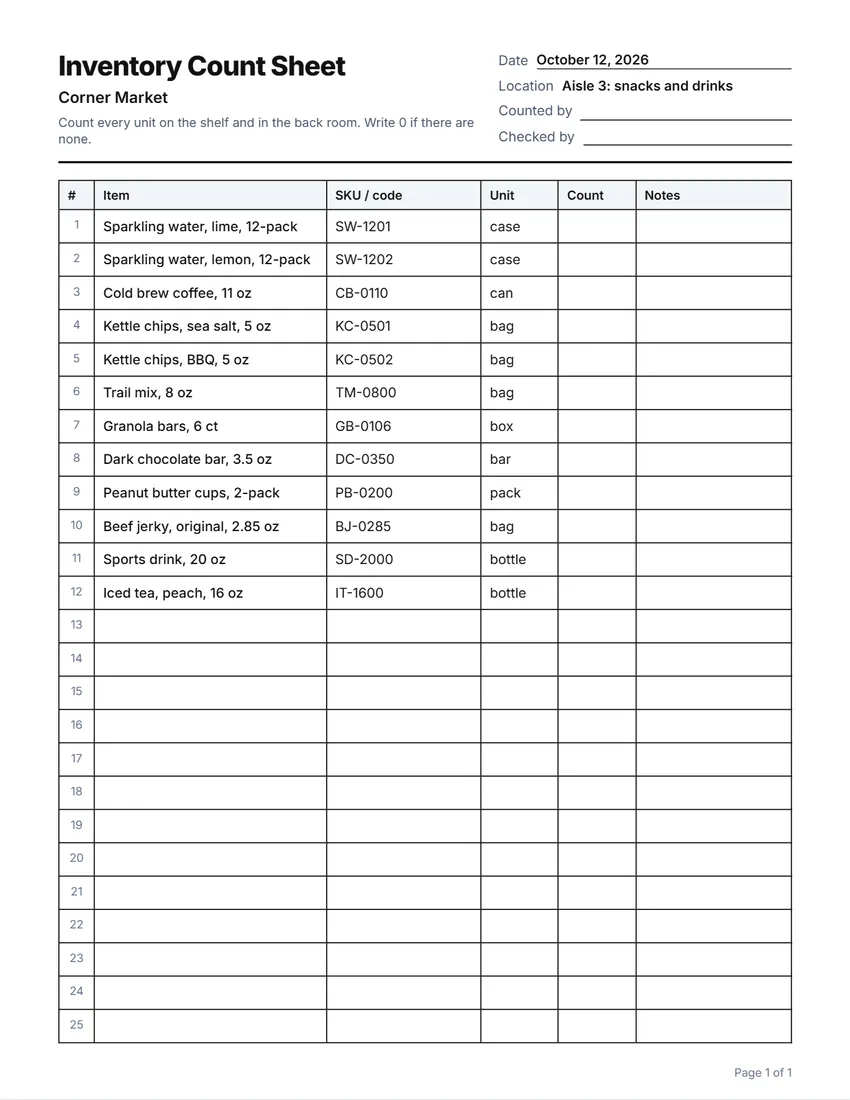 Default layout
GridEvery cell boxed, like a printed count book.
Start with this layoutOpen
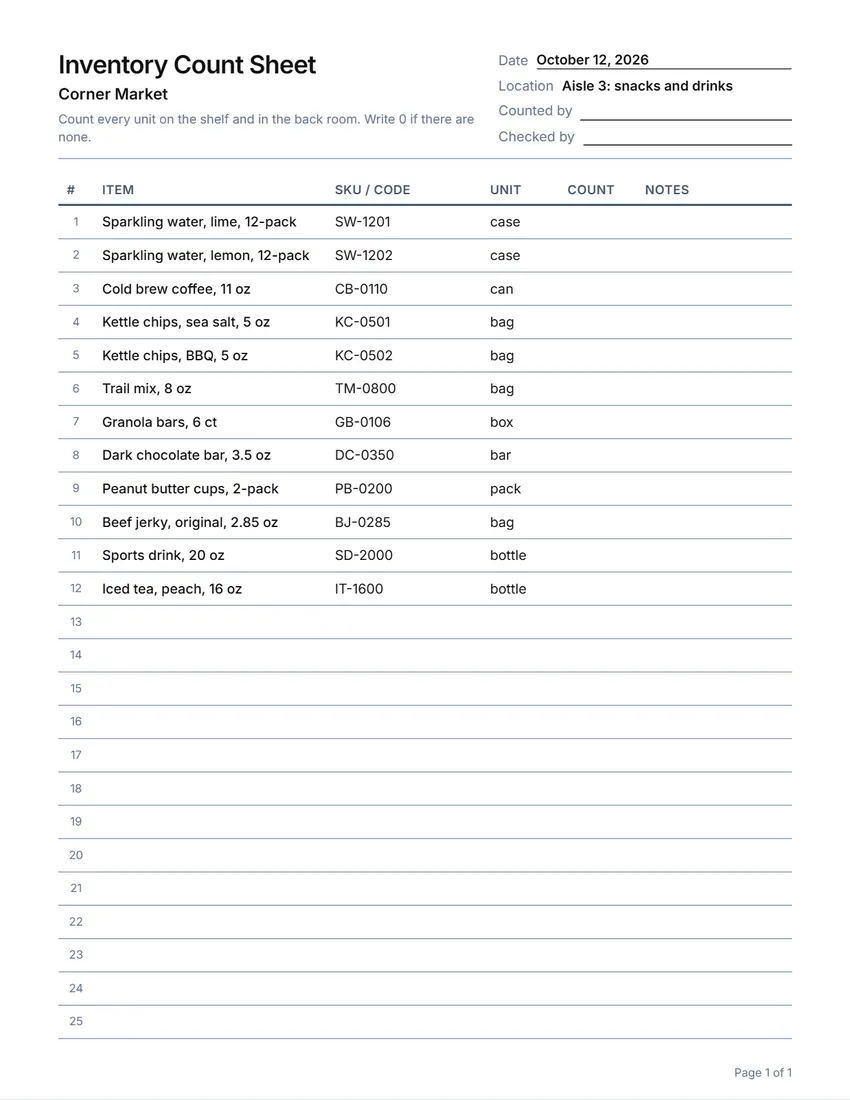 Layout
LinedLines between the rows only. Saves ink.
Start with this layoutOpen
Prefer to fill it in by hand? Print a blank template and write on it.
Related tools
Goes well with this one
Was this tool useful?
Notice: Generated via SnapPaperwork. For counting your own stock. Do not use it to make false stock records, for example for a loan, an insurance claim or a tax return.
Something missing? Tell me what you need.
How to make inventory count sheets in 3 steps
-
Choose the kind of count
A plain stock count, a count against your records (with the on-hand number and a difference column), a count with value (unit cost and total), or a count by shelf. Each starts with its own columns, which you can rename, widen, move or remove.
-
Add your items, or leave the rows blank
Paste the rows from your spreadsheet or point-of-sale export: each cell goes into the next column. Leave the count column empty so it is written by hand. With no items, you get blank numbered rows.
-
Print, count, sign
Print as many pages as you need. Each page has the title, date and “Counted by” and “Checked by” lines, so pages can be handed out to different people and still make sense afterwards.
Which count sheet do you need?
- Stock count: item, SKU, unit and a box for the count. For a quick count of a shelf, a room or the whole shop.
- Count against your records: adds the on-hand number from your system and a difference column, so you can see what is missing or over.
- Count with value: adds unit cost and total value, for a year-end stock take or an insurance list.
- Count by shelf or location: the shelf or bin comes first, so counters walk the store in order. Good for cycle counts, one area at a time.
How to run a stock take
- Pick a time when nothing is sold or delivered, or note the last sale and delivery included in the count.
- Tidy the shelves and put stray items back where they belong before you start.
- Give each counter a shelf, aisle or room, and the pages for it. Count every unit, including the back room and display stock.
- Write 0 when there is none. An empty box later looks like a skipped line.
- Have a second person check a sample of lines, then both sign the page.
- Enter the counts into your system the same day, and look into any big differences while everyone still remembers.
Tips for an accurate count
- Print a “blind” sheet without the on-hand column (Stock count) so counters do not just copy the number from the system.
- Count in pairs: one counts, one writes. Swap halfway through.
- Write in pen and cross out mistakes with one line, so the sheet stays readable as a record.
- For a count with value, use what you paid (cost), not the price on the shelf.
- Keep the signed sheets with your records. Your accountant may ask how the year-end stock figure was worked out.
- Number the rows and the pages, so a missing page is easy to spot.
General information, not accounting or tax advice. Ask your accountant how your business must value its stock.
Frequently asked questions
Is this inventory count sheet free?
Yes. It is free to use, needs no account or sign-up, and never adds a watermark or a SnapPaperwork logo to your sheets.
Can I import my item list?
Yes. Copy the rows from a spreadsheet (Excel, Google Sheets, Numbers) or from your point-of-sale export and paste them into “Items to print”. Each cell goes into the next column, from the left. When typing, put a | between the cells.
How many items fit on a page?
About 25 rows at normal height on Letter (27 on A4), about 34 at compact height. The form shows the exact number. Up to 400 items, on up to 20 pages, at once.
What is a blind count?
A count where the counters cannot see how many the system expects. People count more carefully when they cannot just copy a number. Use “Stock count”, which has no on-hand column.
Can I add my own columns?
Yes. Rename, widen, move or remove any column, or add your own (up to 8), for example Size, Colour, Expiry date or Bin.
Is my information uploaded or stored on your servers?
No. Everything you type stays in your browser and is never sent to me. The form, your item list and your logo are saved on your own device so they are there next time.
How do I print the sheets?
Click “Print / Save PDF” and print at 100% (“Actual size”), not “Fit to page”, so every row keeps its height. “Download PDF” saves a file you can print later or send to your team.