Free Google Review QR Code Sign GeneratorFill in the form, check the preview, then print it or save it as a PDF. No sign-up, and nothing you type is uploaded.
Design
Whole page · the printed page has no watermark or logo.
Some text is too close to the edge of the sign, where most printers cut it off. Shorten the title, business name or tagline, make something smaller (click or tap it on the sign), or try another design.
Examples3 layouts filled in with made-up details. Open one to start with that layout.
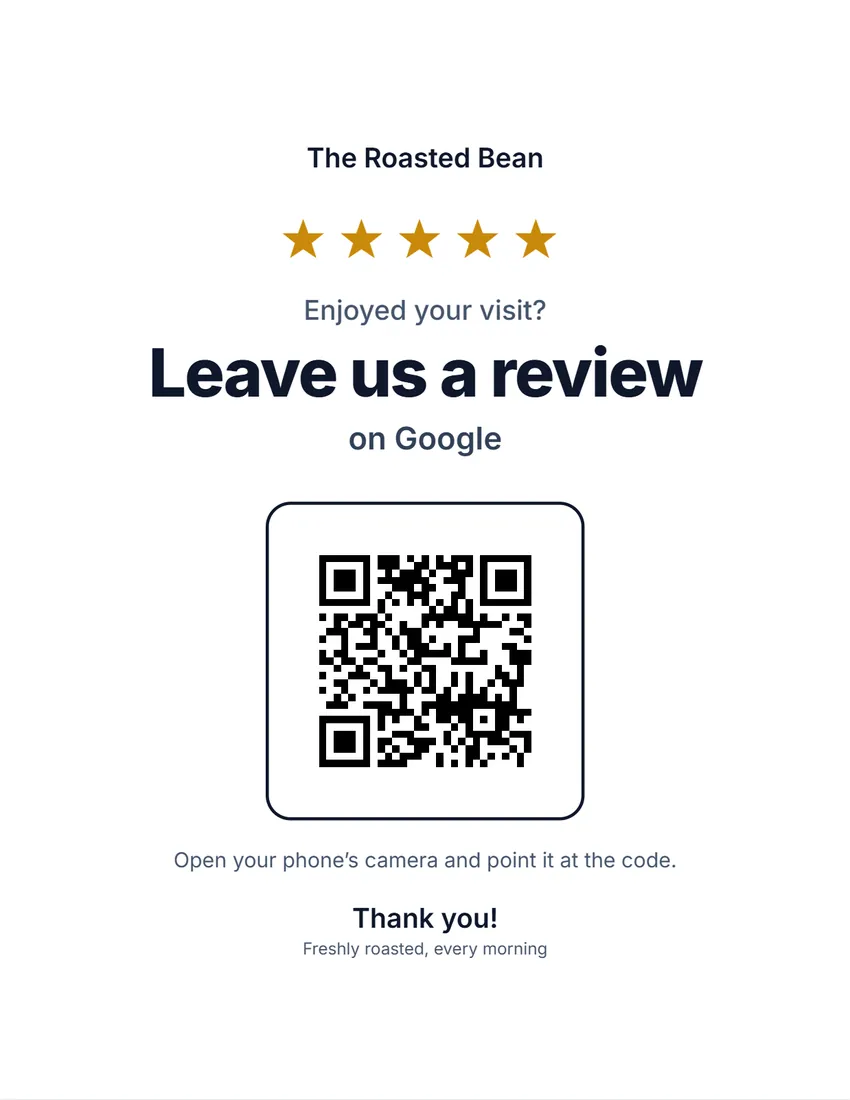 Default layout
StarsClean and friendly: a row of stars, a bold title, the QR code in a rounded frame.
Start with this layoutOpen
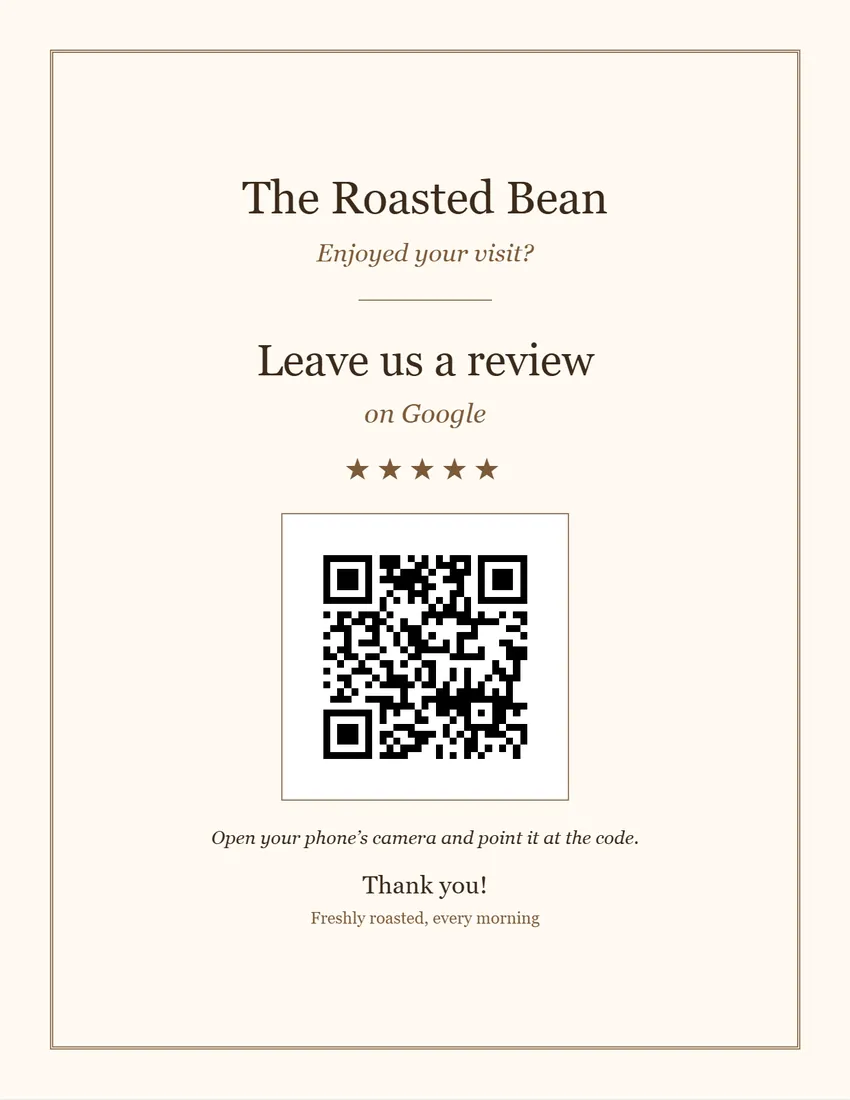 Layout
ArtisanWarm and classic for cafes and bakeries: cream tone, brown frame, serif type.
Start with this layoutOpen
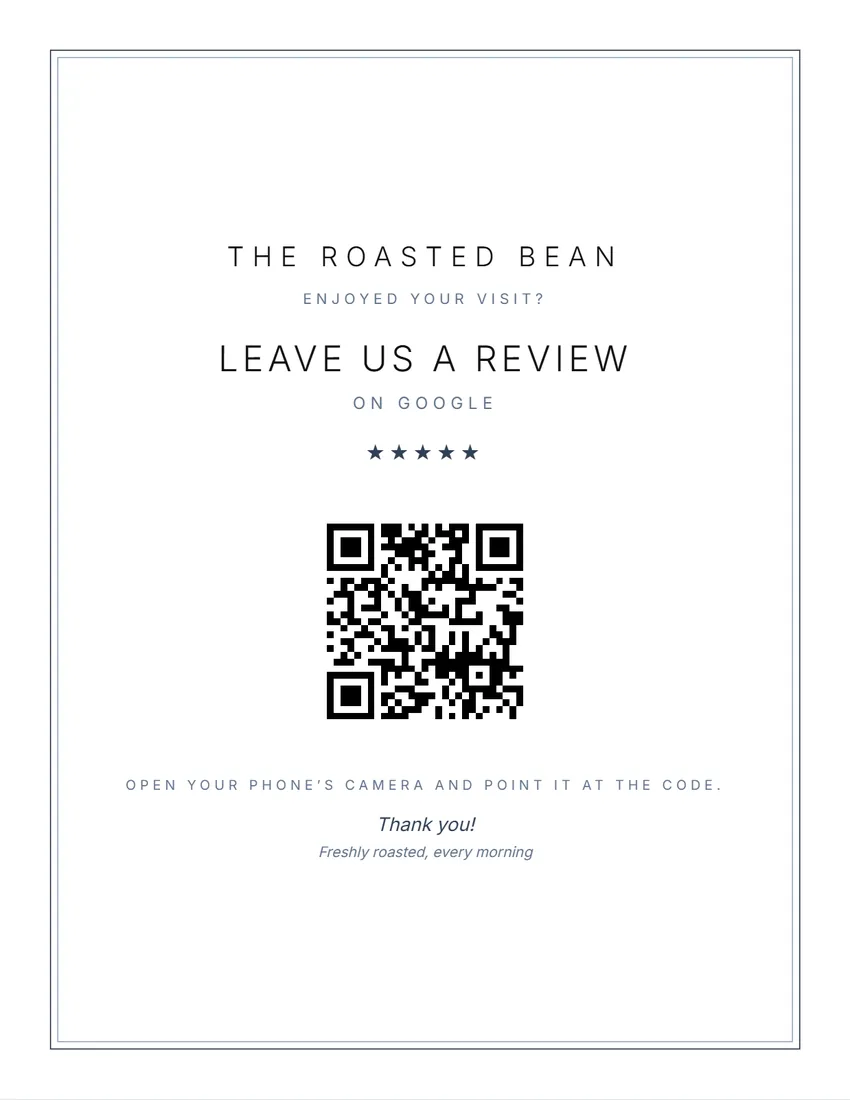 Layout
BoutiqueQuiet and elegant for salons, spas and hotels: fine double frame, spaced capitals.
Start with this layoutOpen
Related tools
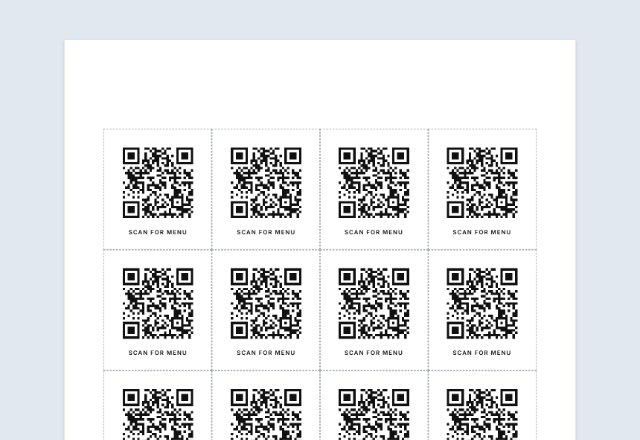
Goes well with this one
Was this tool useful?
Notice: Generated via SnapPaperwork. For your own business’s review link only. Do not offer rewards for reviews, ask only happy customers, or point the code at someone else’s page.
Something missing? Tell me what you need.
How to make a review QR sign in 3 steps
-
Copy your review link
In your Google Business Profile on a computer, choose Read reviews, then Get more reviews, and copy the link. Paste it into the form: the QR code is made on this page.
-
Pick a design and a size
A full-page sign for a wall or window, two cards to cut, or a table tent that stands on the counter. Add your logo and change any of the words.
-
Test it, then print
Scan the code on screen with your own phone to check it opens your review page. Then print at actual size, on card stock for a table tent.
How to get your Google review link
Google makes a review link (and its own QR code) for every Business Profile. On a computer, open your Business Profile, choose Read reviews, then Get more reviews. Choose Copy to copy the link. Google says review QR codes can only be made on a computer browser, not on a phone.
The link usually starts with https://g.page/r/ and ends in /review. Paste the whole link into the form, then scan the code on screen with your phone before you print.
Asking for reviews the right way
Google’s rules for reviews on Maps say a business must not offer incentives, such as payment, discounts or free goods or services, in exchange for a review, or for changing or removing one. So no “10% off for a review” on the sign.
Google also says a business must not discourage negative reviews or selectively ask only happy customers, and must not require or pressure customers to leave reviews while they are on the premises. A sign that invites everyone, and leaves it to them, is the honest way to ask.
In the US, the FTC’s rule on consumer reviews and testimonials (in effect since October 21, 2024) forbids offering incentives on the condition that a review is positive or negative. Google’s own rule is stricter: no rewards for reviews at all.
Where to put the sign
- Next to the till or card reader, where people wait for a moment
- On tables, as a table tent, in a cafe or restaurant
- On the door or window as people leave
- In a waiting area, a treatment room or a hotel room
- With the receipt or the bag, as a half-page card
Printing, cutting and folding
- Print at 100% (“Actual size”), not “Fit to page”, so the sign keeps its margins.
- Full page: use plain paper behind a frame or in a sign holder, or card stock on its own.
- Half page, cut: cut along the dashed line in the middle for two cards.
- Half page, folded: print on card stock, fold along the dashed line so the two halves meet back to back, and stand it on the table. The upside-down half is meant to be that way.
- Make the QR code at least about 3 cm (1.2 in) wide, and keep it on a plain white background so phones read it easily.
Checked in October 2026. Google is a trademark of Google LLC. This site is not affiliated with or endorsed by Google.
- Create a Google link or QR code to request reviews (Google Business Profile Help)
- Tips to get more reviews (Google Business Profile Help)
- Prohibited and restricted content: rating manipulation (Google Maps User Generated Content Policy)
- Consumer Reviews and Testimonials Rule: questions and answers (Federal Trade Commission)
Frequently asked questions
Is this review sign maker free?
Yes. It is free to use, needs no account or sign-up, and never adds a watermark or a SnapPaperwork logo to your sign.
Where do I get my Google review link?
In your Google Business Profile on a computer: choose Read reviews, then Get more reviews, then Copy. Paste the link into the form and the QR code is made on this page.
Does the QR code expire?
No. It simply holds your review link, so it works as long as that link does. If you ever get a new link, make a new sign.
Can I offer a discount for leaving a review?
Not for Google reviews. Google’s rules forbid offering payment, discounts or free goods or services in exchange for a review. Invite everyone instead, and thank them.
Can I use it for Yelp, Facebook or another site?
The QR code opens whatever link you paste, so it works for any web page. Change “on Google” in the wording to match. Check that site’s own rules about asking for reviews first.
Why is there no Google logo on the sign?
The Google name and logo are Google’s trademarks, and this site is not affiliated with Google. The sign says “on Google” in plain words, which is enough for customers to know where the code goes.
Can I make the QR code or the title bigger?
Yes. Click or tap any part of the sign, then use − and + to resize it. With a mouse you can also drag the corner of the QR code or the logo.
Is anything I type uploaded?
No. The QR code is made in your browser, and everything you type, and your logo, stays on your device. On a shared computer, press “Clear Form” when you are done.
How do I save the sign as a PDF?
Click “Print / Save PDF” and choose “Save as PDF” as the printer, or click “Download PDF” to save a file straight to your phone or computer. Scan the code in the PDF with your phone before you print it.