Free Monthly Budget TemplateWrite what you plan to earn and spend this month, fill in what really happened, and see what is left over. Or print the blank budget and fill it in by hand. Nothing you type is uploaded.
Layout
Whole page · the printed page has no watermark or logo.
Examples2 layouts filled in with made-up details. Open one to start with that layout, or print a blank template to fill in by hand.
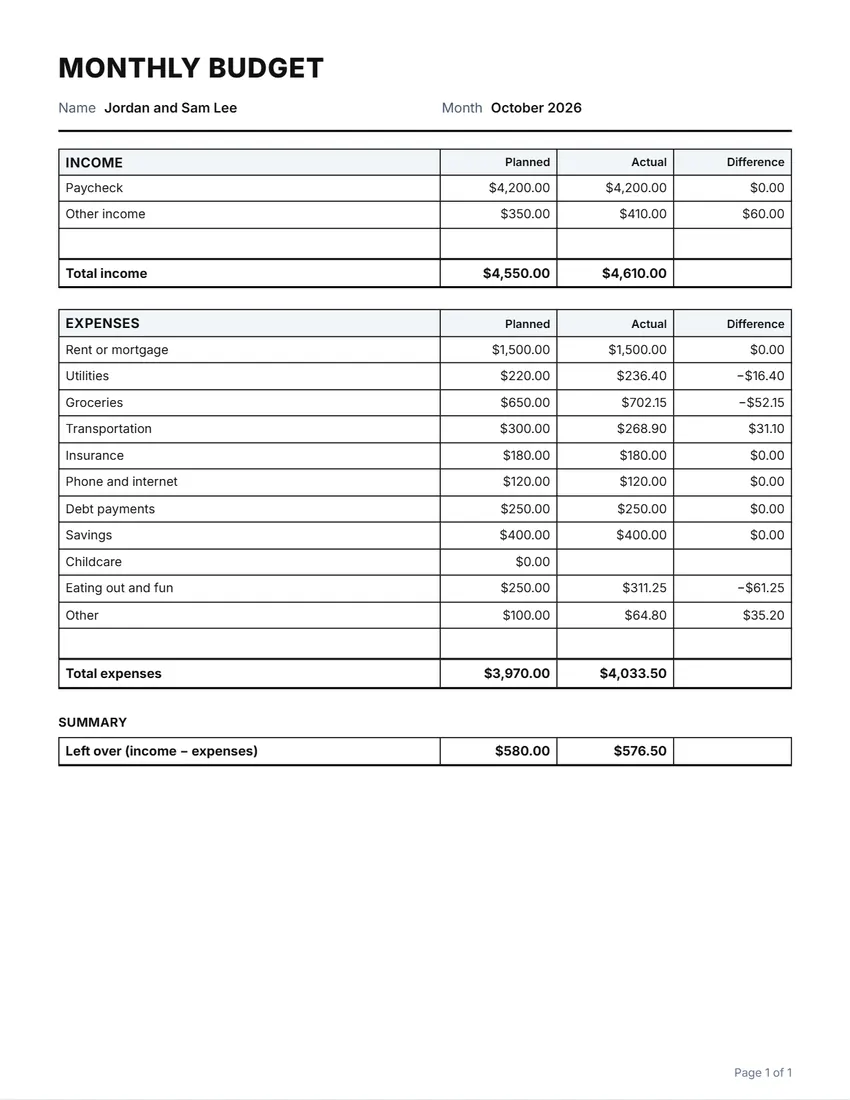 Default layout
GridRuled cells like a printed budget sheet.
Start with this layoutOpen
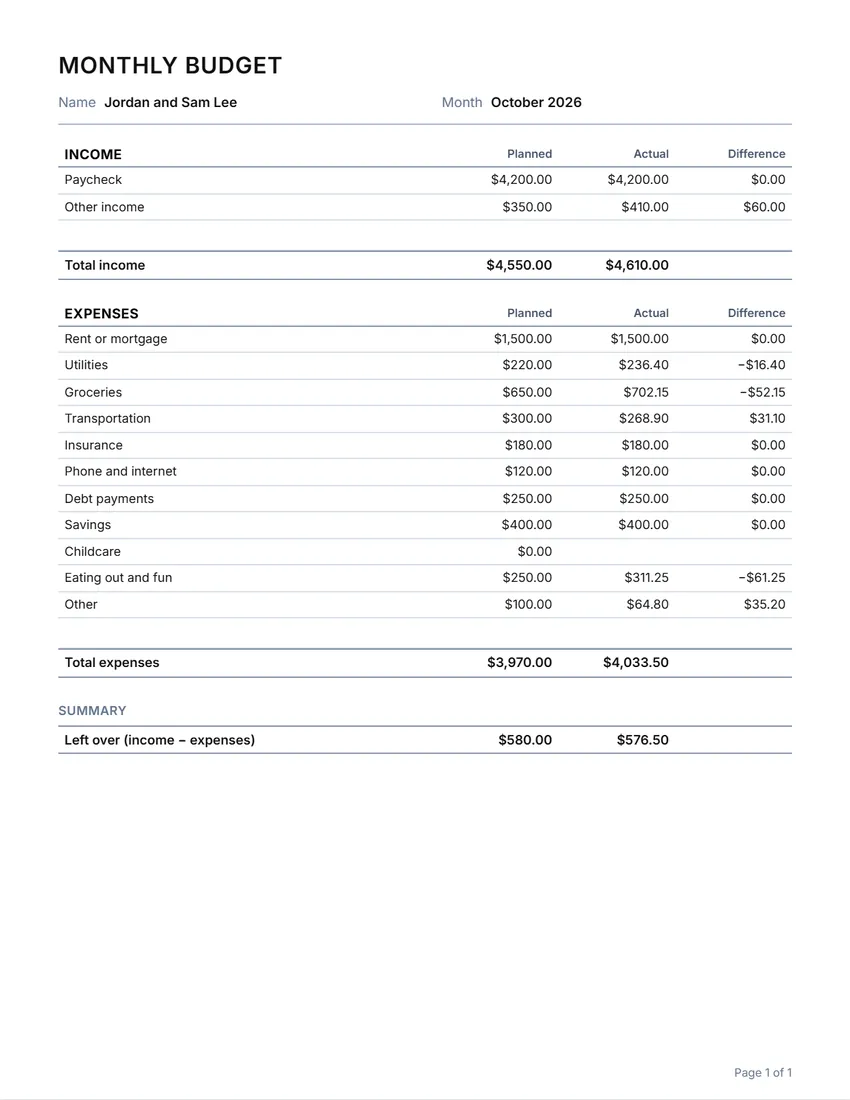 Layout
LinedLines between the rows only. Saves ink.
Start with this layoutOpen
Prefer to fill it in by hand? Print a blank template and write on it.
Related tools
Goes well with this one
Was this tool useful?
Notice: Generated via SnapPaperwork. For your own planning. A budget you make here is not a financial statement and should not be shown as proof of income.
Something missing? Tell me what you need.
How to make a budget in 3 steps
-
Plan the month
Write what you expect to earn and what you plan to spend on each line. The standard lines cover most homes; rename, remove or add your own.
-
Fill in what really happened
As bills are paid and money comes in, write the actual amounts. The difference shows where you are over or under.
-
See what is left over
The totals and what is left over are worked out for you. Print it, or save it as a PDF and start a new one next month.
Tips for a budget that works
- Start with the bills that do not change: rent, insurance, phone. Then the ones that do: groceries, gas, fun.
- Look at last month’s bank statement to see what you really spent, not what you think you spent.
- Give every dollar a job: if there is money left over, plan it for savings or a debt.
- Keep a small line for “Other”: something always comes up.
- Check in once a week for a few minutes; it is easier than fixing a month at the end.
Reading the difference column
For income, the difference is actual minus planned: above zero means more came in than you expected. For expenses it is planned minus actual: above zero means you spent less than planned. A minus sign means that line went the wrong way.
Frequently asked questions
Is this budget planner free?
Yes. It is free to use, needs no account or sign-up, and never adds a watermark or a SnapPaperwork logo to your budget.
Can I print a blank budget worksheet?
Yes. It starts with the usual income and expense lines and no amounts, so it prints as a blank worksheet. Add empty rows to write in more lines by hand.
What does “left over” mean?
Total income minus total expenses, for both the plan and what really happened. A minus sign means you planned or spent more than came in.
Does it connect to my bank?
No. Nothing is connected or sent anywhere. You type the amounts yourself, and they stay in your browser.
Can I use it for a weekly or yearly budget?
Yes. Leave the month empty and rename the title in the Wording panel, such as “Weekly budget” or “Trip budget”.
Is my information uploaded or stored on your servers?
No. Everything you type stays in your browser and is never sent to me. It is saved on your own device so it is there next time.