Free Work Order TemplateFill in the form, check the preview, then print it or save it as a PDF. No sign-up, and nothing you type is uploaded.
Layout
Whole page · the printed page has no watermark or logo.
This work order is longer than one page and will print on two pages. Use fewer empty lines, shorten the text, or try another layout.
Examples3 layouts filled in with made-up details. Open one to start with that layout, or print a blank template to fill in by hand.
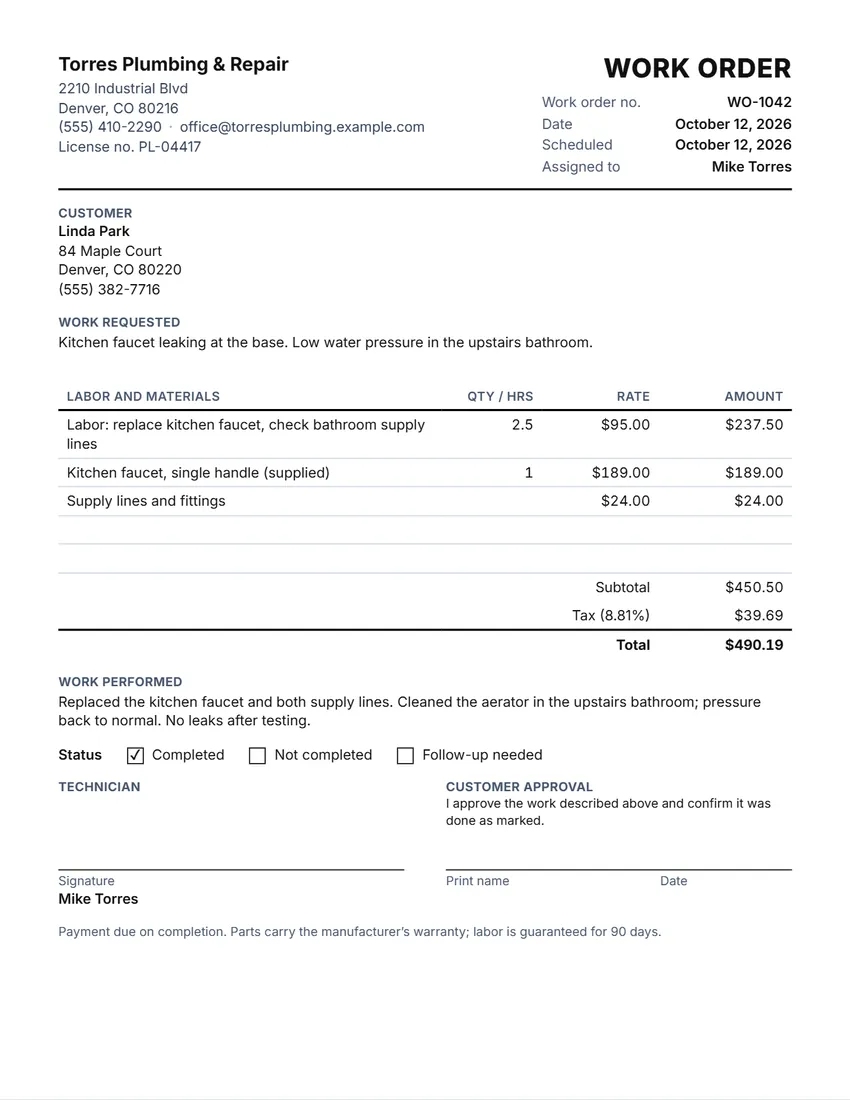 Default layout
ClassicYour logo and details at the top, the title and number on the right.
Start with this layoutOpen
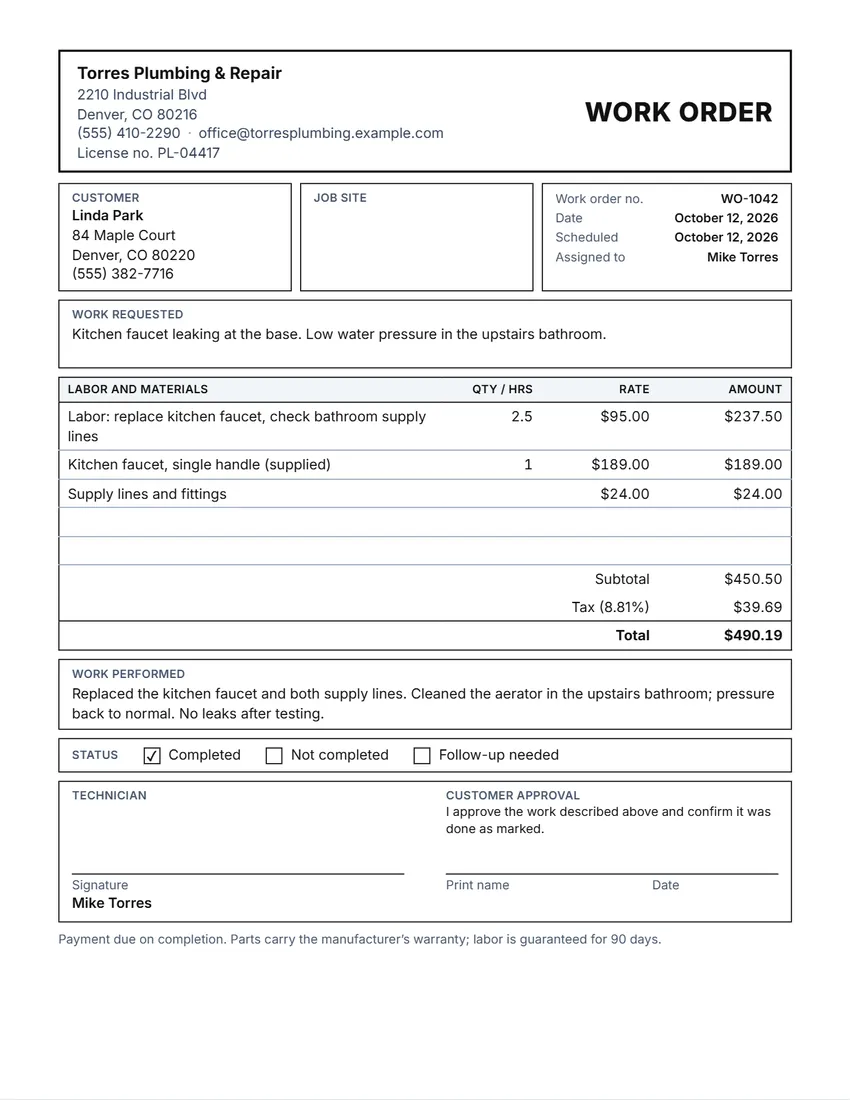 Layout
BoxedRuled boxes like a printed form.
Start with this layoutOpen
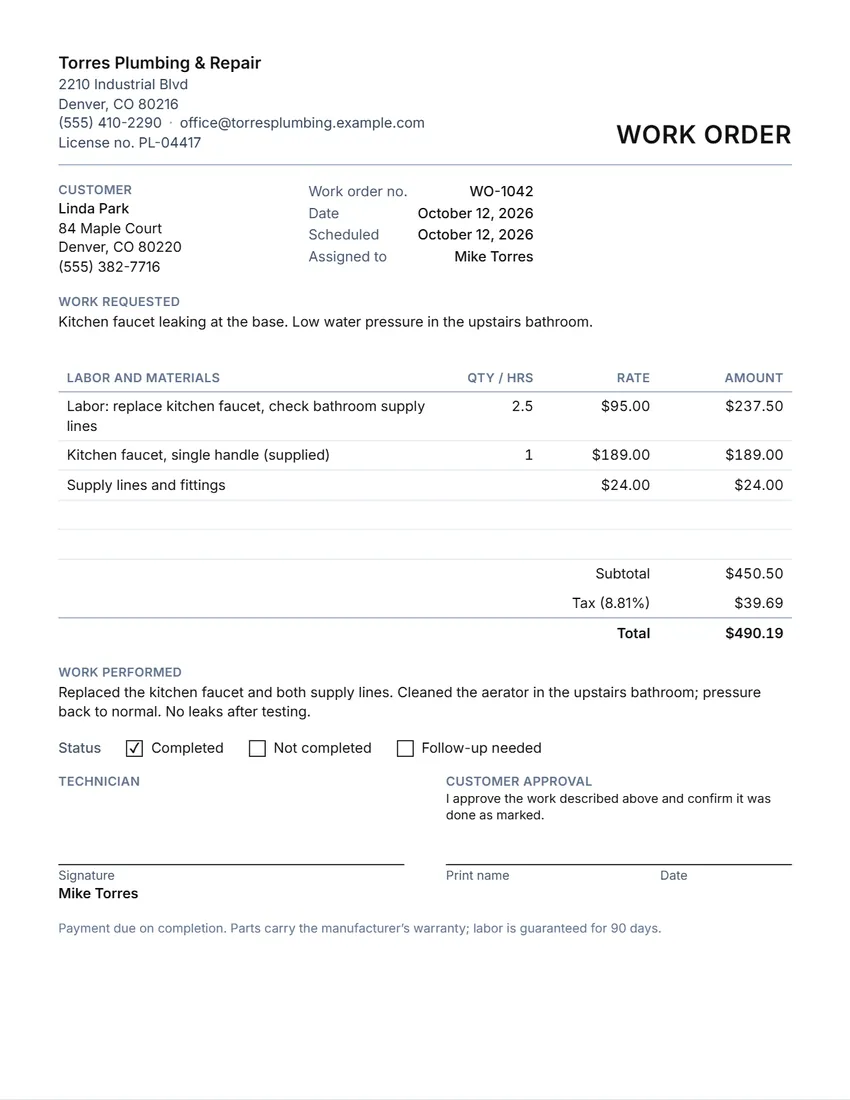 Layout
SimpleClean and light: thin lines, little ink.
Start with this layoutOpen
Prefer to fill it in by hand? Print a blank template and write on it.
Related tools
Goes well with this one
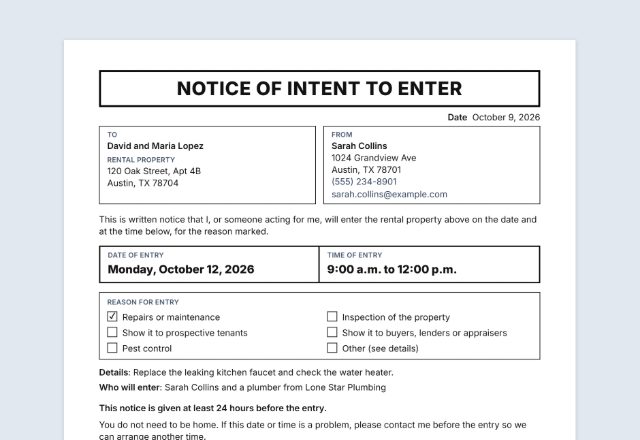 Notice of entrySending a contractor into a rental?Open
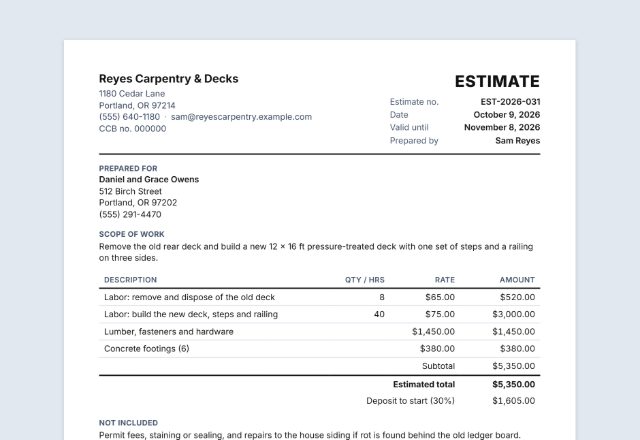 Job estimate / quotePricing the job first?Open
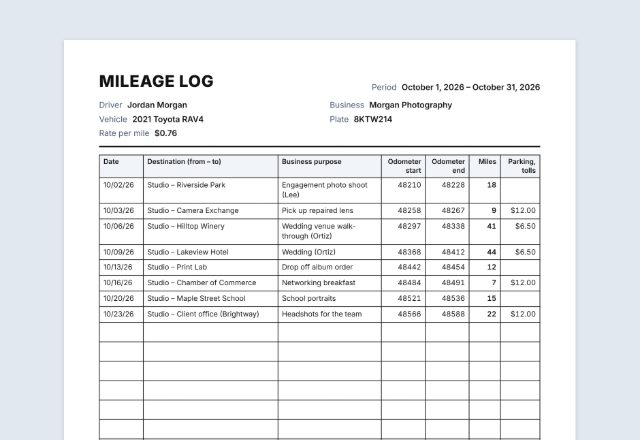 Mileage logDriving between jobs?Open
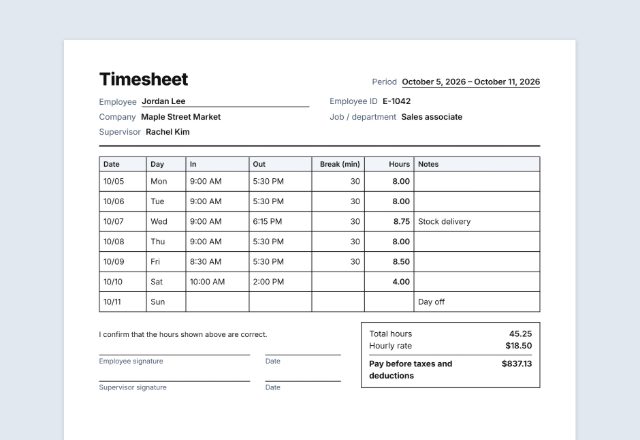 TimesheetTracking your crew’s hours?Open
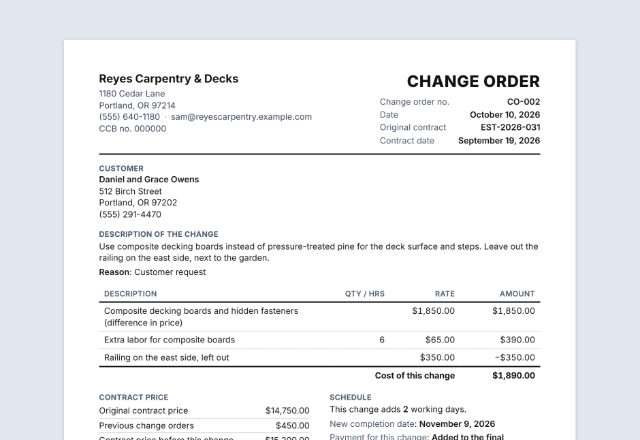 Change orderExtra work on the job?Open
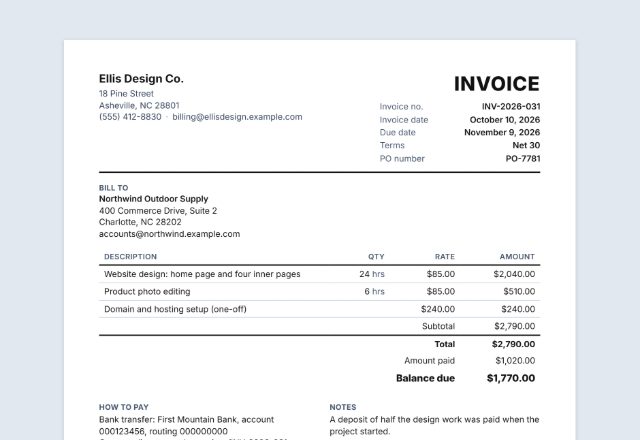 InvoiceWork done, ready to bill?Open
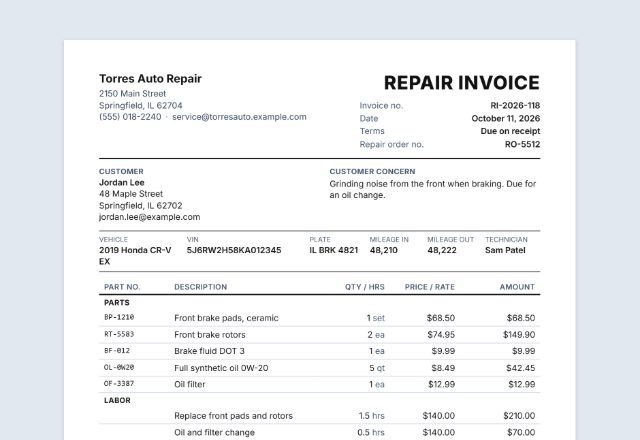 Auto repair invoiceRepairing a vehicle?Open
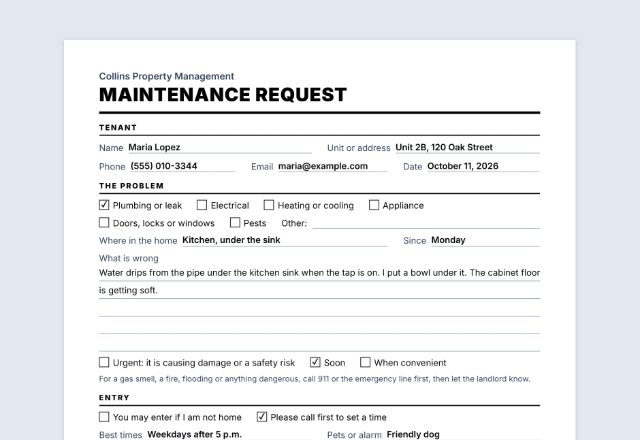 Maintenance requestA tenant reported a repair?Open
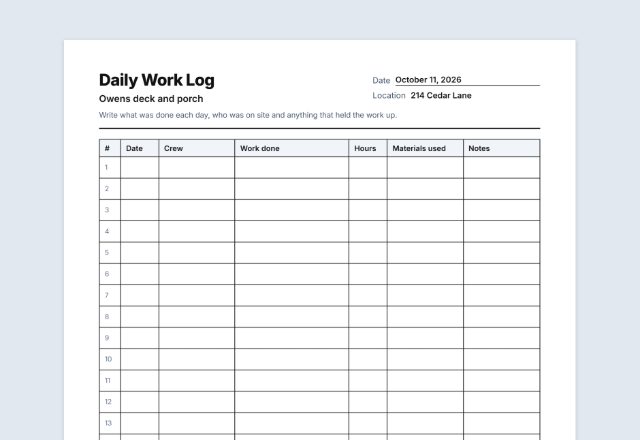 Work log, punch listLogging the job day by day?Open
Was this tool useful?
Notice: Generated via SnapPaperwork. For real jobs only. Do not use it to bill for work that was not done, or to make a record look signed by a customer who did not sign it.
Something missing? Tell me what you need.
How to fill in a work order in 3 steps
-
Write down the job
Who the customer is, where the work is, and what they asked for. Give it a number and, if you like, a date and the technician it is assigned to.
-
List labor and materials
Hours or quantities times the rate, or a fixed price. Subtotal, tax and total are worked out for you. Add empty lines for anything found on site.
-
Sign it off on the job
Note the work performed and tick the status. The technician signs, the customer signs the printed copy, and each keeps one.
What a work order should include
- Your business name, contact details and any license number
- A work order number and the date
- The customer’s name and contact details
- The job site address, when it is not the customer’s
- The work requested, in the customer’s words
- Labor and materials, with the rate and amount for each line
- The work actually performed, and whether the job is finished
- Signatures of the technician and the customer
Work order, estimate or invoice?
| Paper | When | What it does |
|---|---|---|
| Estimate or quote | Before the job | Tells the customer what the work should cost, so they can say yes |
| Work order | When the job is booked and done | Tells the technician what to do, and records what was done, with the customer’s sign-off |
| Invoice | After the job | Asks the customer to pay for the work |
Tips from the job
- Write the customer’s request in their own words, then the work you actually did. When the two differ, the work order shows why.
- If you find more work on site, write it on an empty line and have the customer sign before you do it.
- Take photos before and after, and note the work order number with them.
- Number your work orders in order (WO-001, WO-002…) so none goes missing.
- Give the customer a copy and keep one. A signed work order is the easiest way to settle questions later.
Frequently asked questions
Is this work order generator free?
Yes. It is free to use, needs no account or sign-up, and never adds a watermark or a SnapPaperwork logo to your work order.
What is a work order?
A work order describes a job to be done, such as a repair or an installation, and records what was done: the labor, the parts, the status and the signatures. Trades, repair shops and maintenance teams use it to plan the job and to show the customer what they are paying for.
How is the total worked out?
Each line is quantity (or hours) times the rate. Leave the quantity empty and the rate is taken as a fixed price for that line. The lines are added up, the tax rate you give is applied to the subtotal, and the total is shown.
Can technicians fill it in by hand?
Yes. Choose some empty lines for parts or labor added on site, and leave “Work performed” empty to print lines to write on. The status boxes can be ticked by hand too.
Can I add my logo?
Yes. Upload a PNG or JPG in “Your business”. It stays in your browser and is printed at the top of the work order.
Is a work order the same as an invoice?
No. A work order describes the job and records that it was done; an invoice asks for payment. Many businesses send an invoice afterwards based on the signed work order.
Can I change the wording?
Yes. Click any text on the page to rewrite it, including the title, or use the “Wording” section, which lists every label with the words printed now.
Are my details uploaded or stored on your servers?
No. Everything you type, your logo and your signature stay in your browser and are never sent to me. The form is saved on your own device so it is there for the next job. On a shared computer, press “Clear Form” when you are done.
How do I save the work order as a PDF?
Click “Print / Save PDF” and choose “Save as PDF” as the printer, or click “Download PDF” to save a file straight to your phone or computer. “Share” opens your device’s share menu with the PDF attached, for example to email it to the customer.