Free Printable Invoice TemplateFill in the form, check the preview, then print the invoice, save it as a PDF or send it to your client. No sign-up, and nothing you type is uploaded.
Layout
Whole page · the printed page has no watermark or logo.
This invoice is longer than one page and will print on two pages. Shorten the descriptions or the notes, or try another layout.
Examples3 layouts filled in with made-up details. Open one to start with that layout, or print a blank template to fill in by hand.
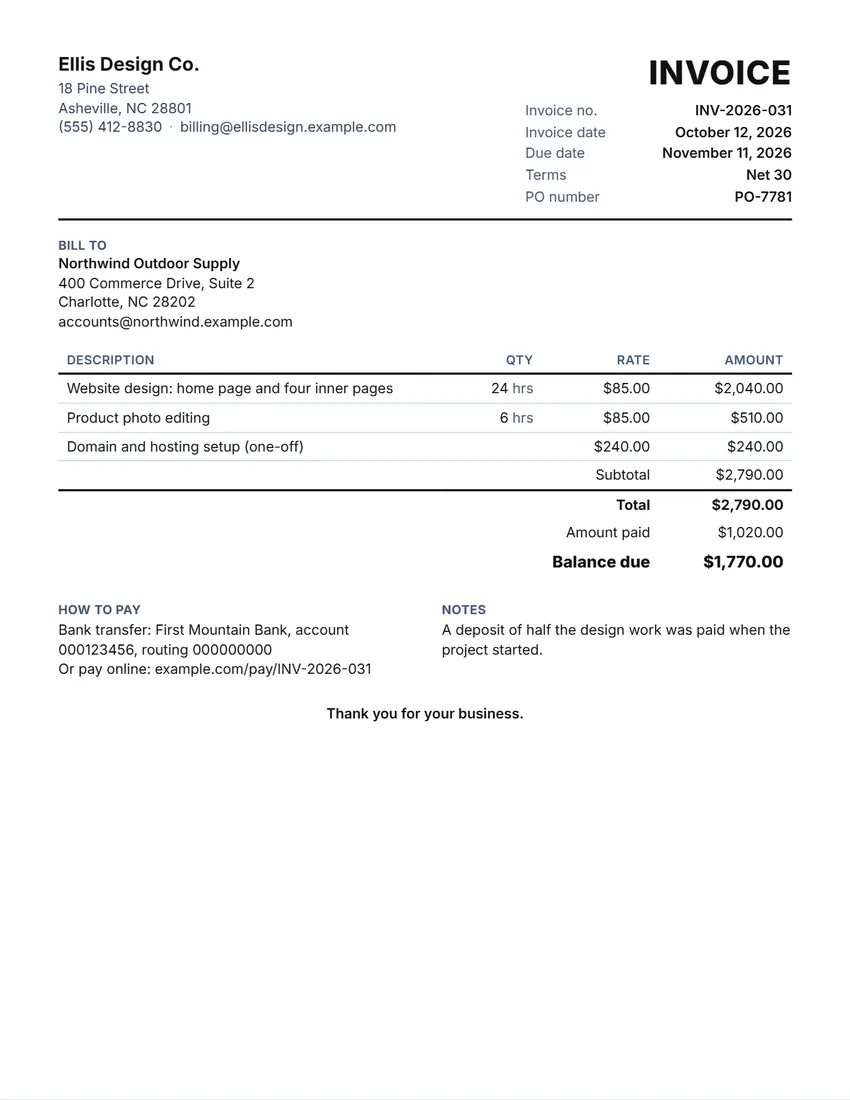 Default layout
ClassicYour logo and details at the top, the title and invoice number on the right.
Start with this layoutOpen
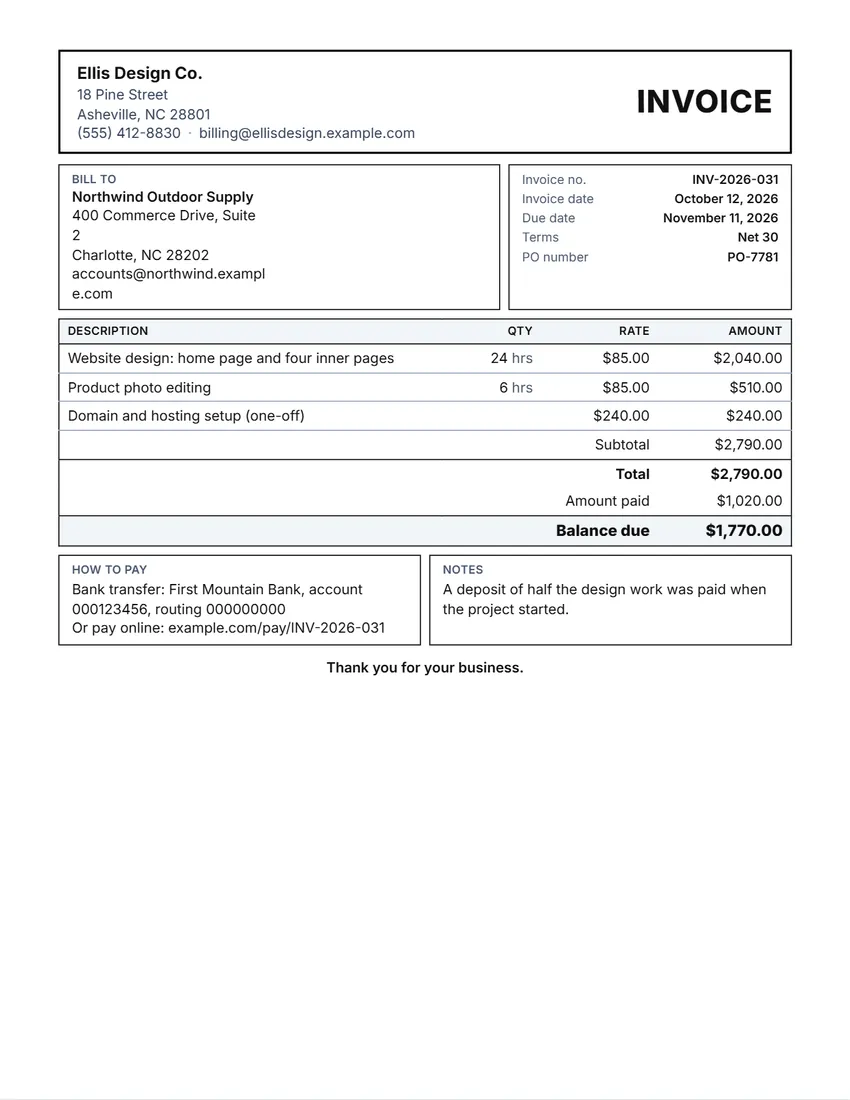 Layout
BoxedRuled boxes like a printed form.
Start with this layoutOpen
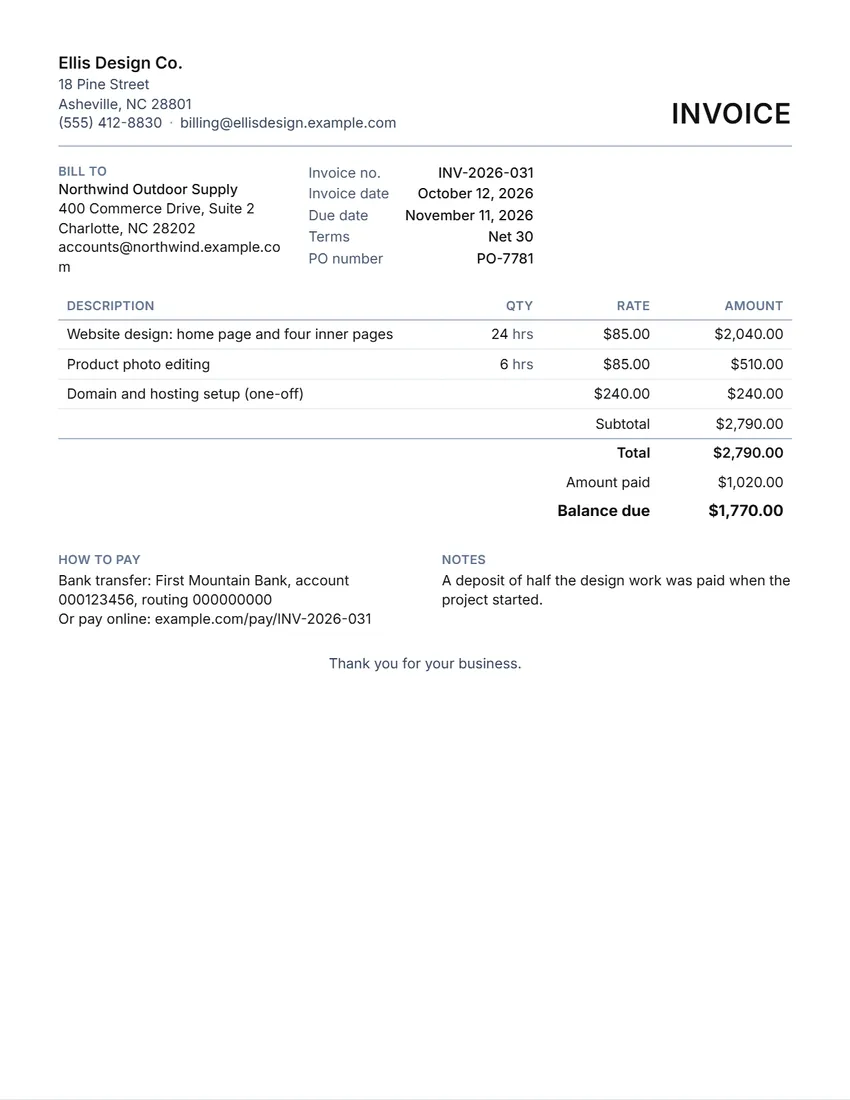 Layout
SimpleClean and light: thin lines, little ink.
Start with this layoutOpen
Prefer to fill it in by hand? Print a blank template and write on it.
Made for a specific case
Related tools
Goes well with this one
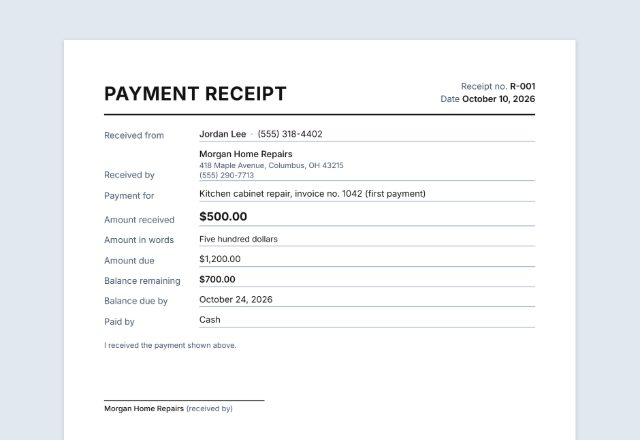 Payment / cash receiptClient paid the invoice?Open
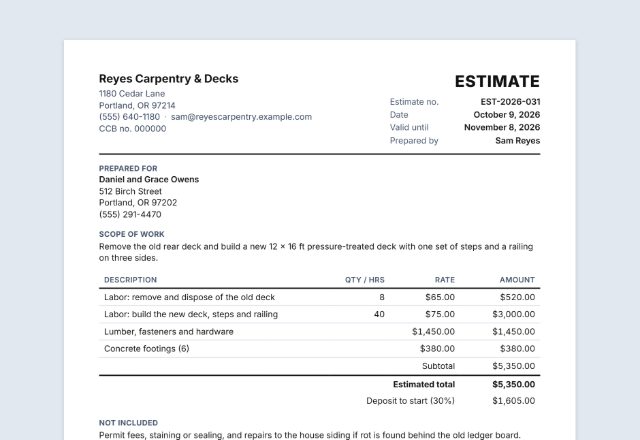 Job estimate / quoteQuoting the job first?Open
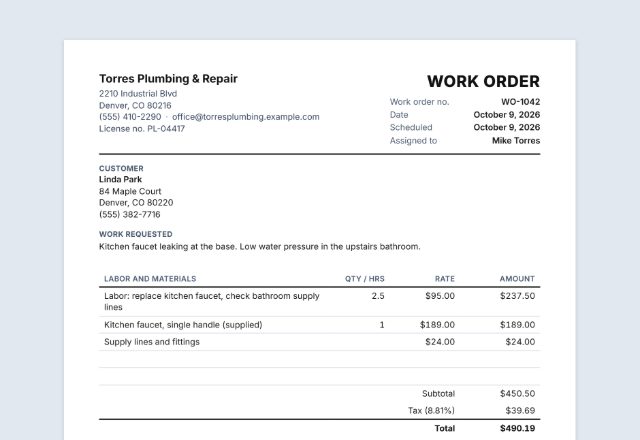 Work orderRecording the work done?Open
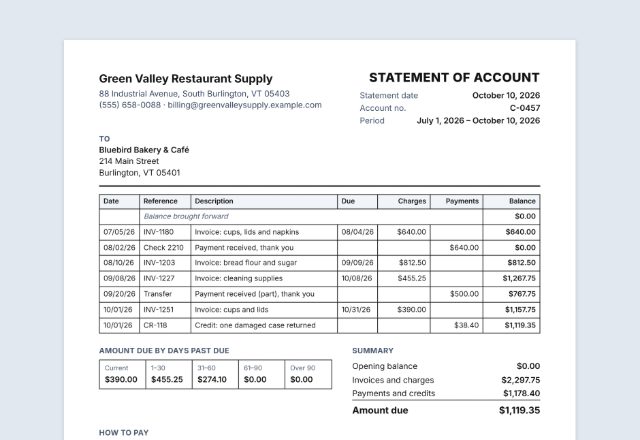 Statement of accountClient has several invoices open?Open
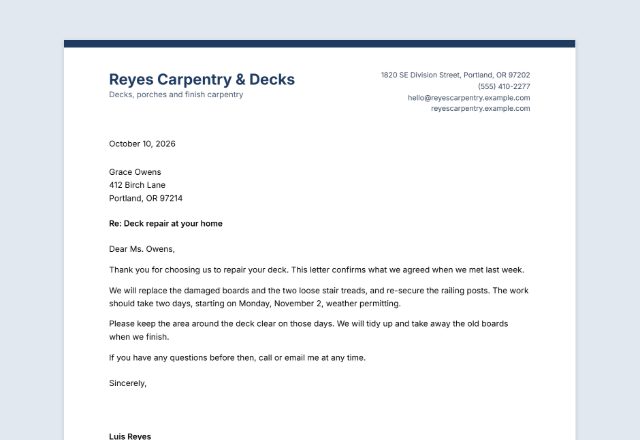 LetterheadWriting to a client?Open
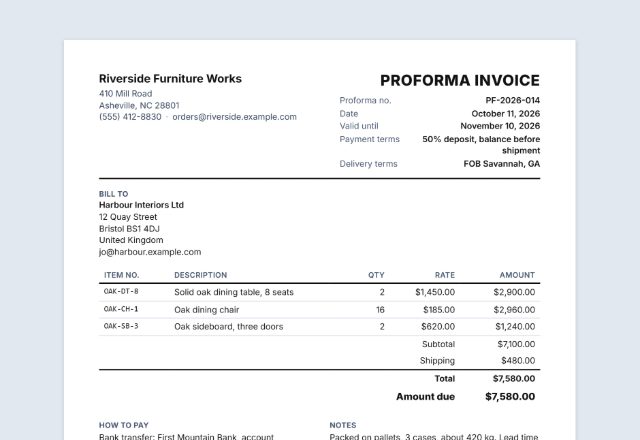 Proforma invoiceNeed payment before you ship?Open
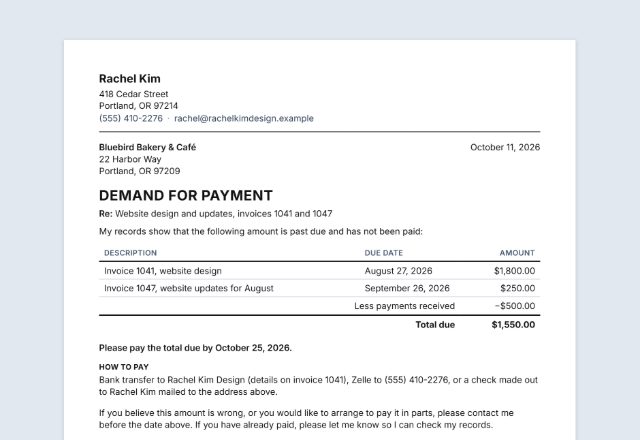 Demand letterInvoice still unpaid?Open
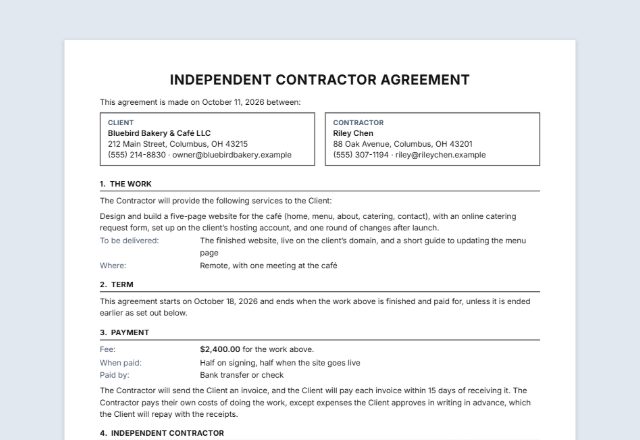 Contractor agreementWorking under a contract?Open
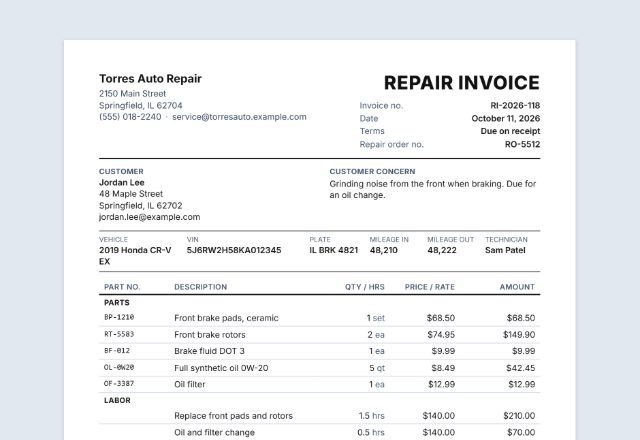 Auto repair invoiceBilling for a car repair?Open
Was this tool useful?
Notice: Generated via SnapPaperwork. For genuine work and sales only. An invoice for work not done, or one made to look like it comes from another business, can be fraud.
Something missing? Tell me what you need.
How to make an invoice in 3 steps
-
Add your business and the client
Your name or business, logo and contact details, then who you are billing. The invoice number counts up with “New invoice”, and the client stays for next time.
-
List the work and set the terms
Each service or item with its quantity or hours and rate; discount, tax and shipping if you need them. Type terms such as Net 30 and the due date is worked out for you.
-
Say how to pay and send it
Add a deposit already paid, so the invoice shows the balance due, and how to pay you. Then print it, save a PDF, or share it straight from your phone.
What an invoice should include
- The word “Invoice”, a unique invoice number and the invoice date
- Your business name, address and contact details
- Who you are billing, and their purchase order number if they gave you one
- Each service or item with its quantity, rate and amount
- Subtotal, any discount, tax and shipping, and the total
- Any amount already paid and the balance due
- The payment terms and the due date
- How to pay you
Estimate, invoice, receipt, statement
An estimate or quote comes before the work: what it should cost. An invoice comes after: what is owed and when.
When the client pays, a receipt confirms it. A statement of account lists several invoices and payments for one client over a period.
Took a deposit at the start? Put it in “Already paid” so the invoice shows only what is left to pay.
Payment terms and due dates
“Net 30” means the full amount is due 30 days after the invoice date; “Net 15” and “Net 60” work the same way. “Due on receipt” means pay now. Type the terms and the due date is worked out, or type your own due date.
Agree on terms before you start the work, and put any late fee you charge in the notes. Late fees must follow what you agreed and the law where you work.
Tips for getting paid on time
- Send the invoice as soon as the work is done, while it is fresh in the client’s mind.
- Make each line specific: dates, hours and what was delivered, so nobody needs to ask.
- Number invoices in order and never reuse a number; keep a copy of each.
- Give several ways to pay, and put your invoice number in the payment reference.
- Follow up politely a few days before and after the due date.
This page is general information, not tax, accounting or legal advice.
Frequently asked questions
Is this invoice generator free?
Yes. It is free to use, needs no account or sign-up, and never adds a watermark or a SnapPaperwork logo to your invoice.
How is the due date worked out?
From the invoice date and the terms: “Net 30” is 30 days later, “Net 15” 15 days, “Due on receipt” the same day. Type a due date yourself to override it.
Can I show a deposit already paid?
Yes. Type it in “Already paid”: the invoice shows the total, the amount paid and the balance due.
Can I add tax, a discount or shipping?
Yes. A discount can be a percentage such as 10% or an amount. Tax is worked out on the subtotal after any discount; shipping is added after tax. Each line appears only when you use it.
Can I bill by the hour?
Yes. Type the hours as the quantity, “hrs” as the unit and your hourly rate. Leave the quantity empty for a fixed price.
Is my information uploaded or stored on your servers?
No. Everything you type stays in your browser and is never sent to me. Your business, client and payment details are saved on your own device so they are there for the next invoice.
How do I send the invoice to a client?
Click “Share” to open your device’s share menu with the PDF attached, or “Download PDF” to save it and attach it to an email.