Free Barcode Label GeneratorChoose your label sheet and the kind of barcode, paste your codes or number them in order, check the preview, then print or save a PDF. No sign-up, and nothing you type is uploaded.
Design
Whole page · the printed page has no watermark or logo.
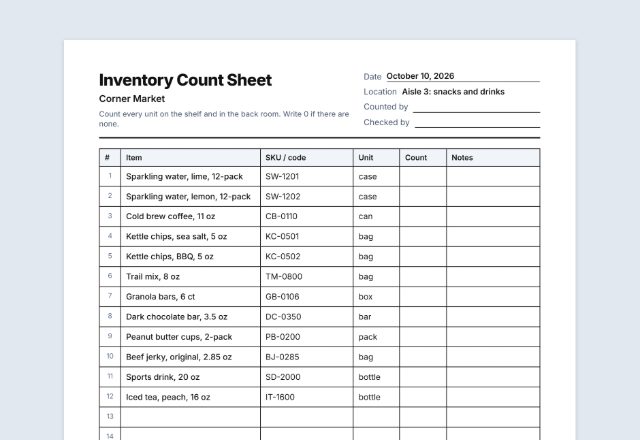
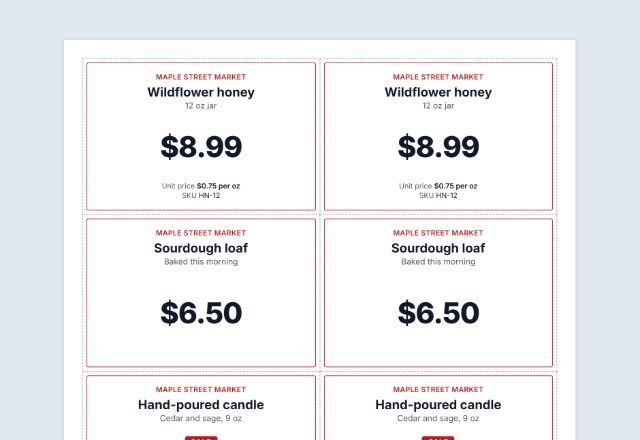
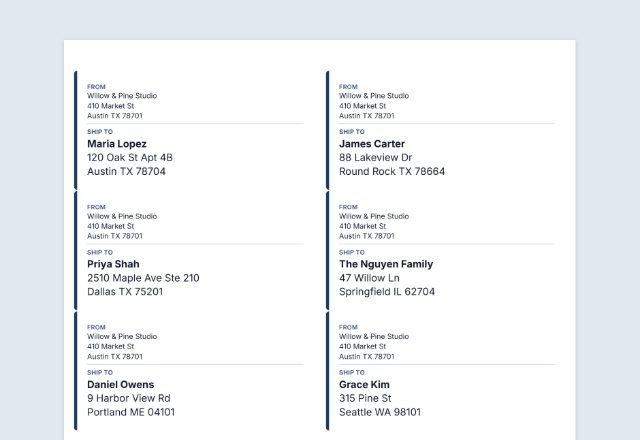
Examples3 layouts filled in with made-up details. Open one to start with that layout.
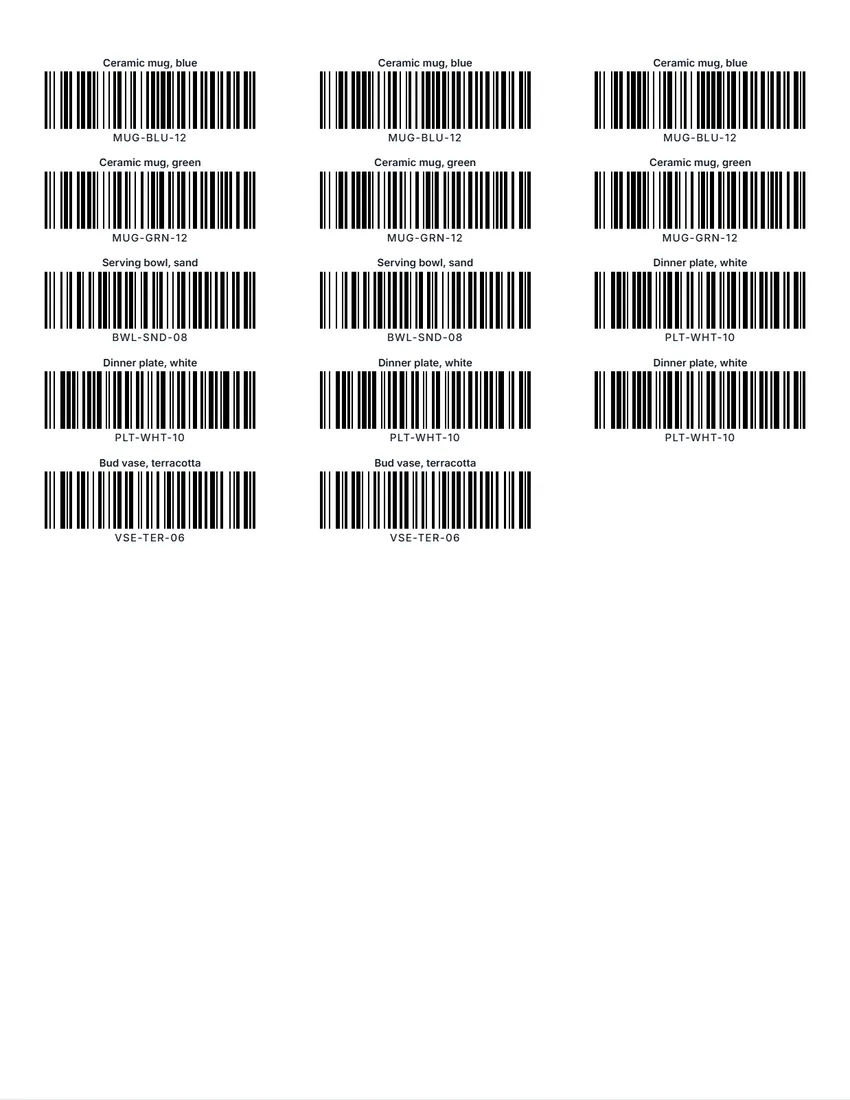
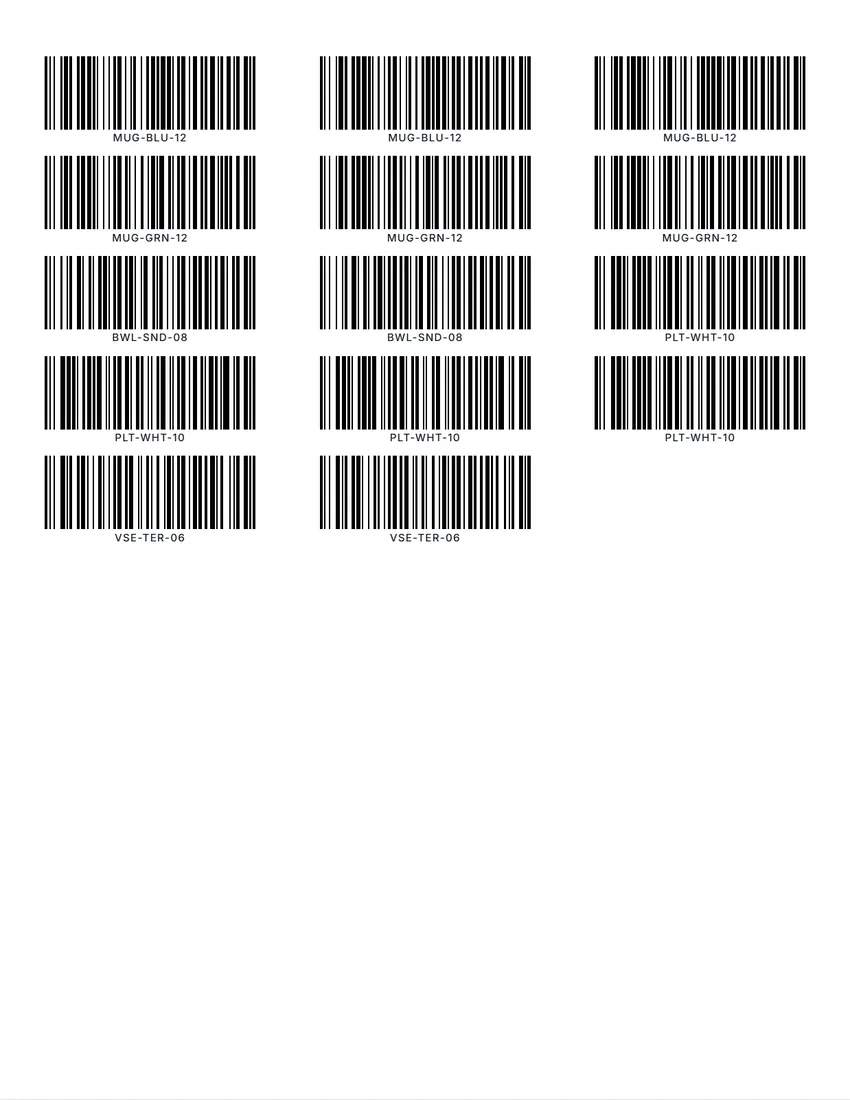
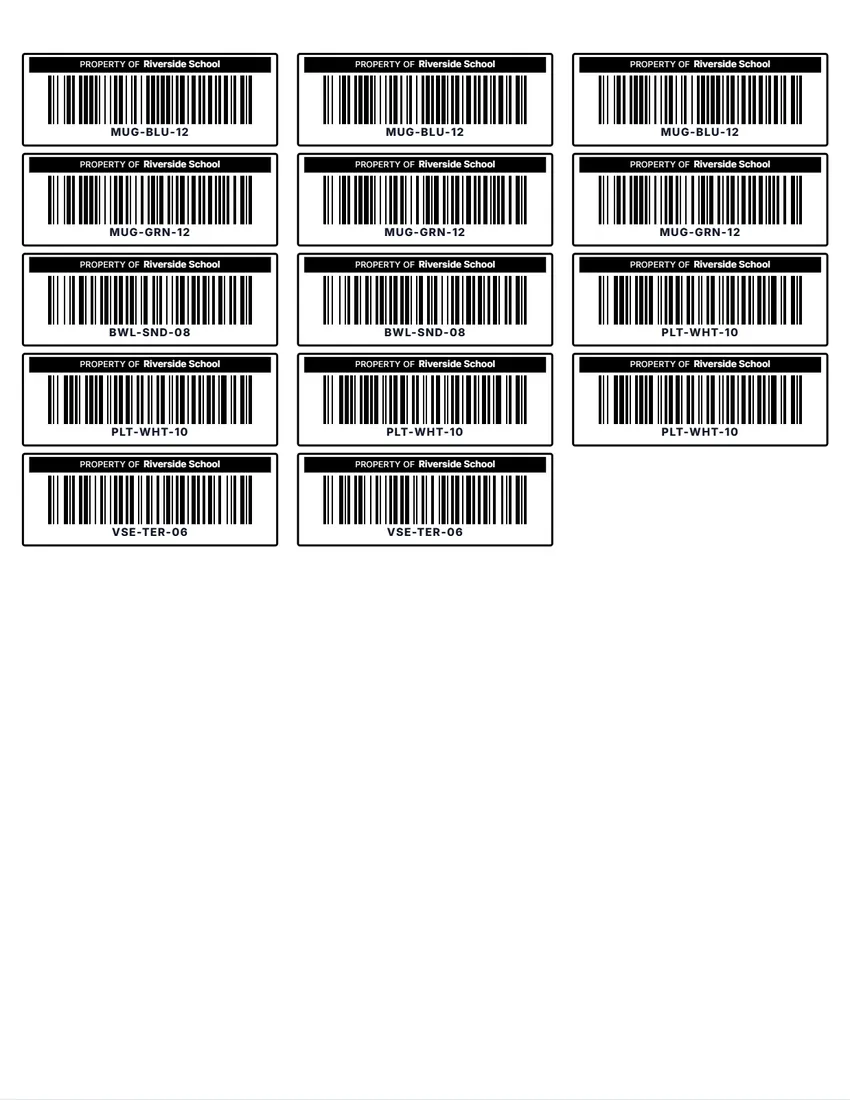
Related tools
Goes well with this one
Was this tool useful?
Notice: Generated via SnapPaperwork. For your own products, stock and equipment. Do not copy another company’s product barcodes, or make UPC or EAN numbers you have not licensed for goods you sell in stores.
Something missing? Tell me what you need.
How to print barcode labels in 3 steps
-
Choose the barcode and the label sheet
Code 128 suits most stock, bin and asset labels; EAN and UPC are for retail products. Pick the sheet that matches your box of labels, such as Avery 5160 or 5167.
-
Add the codes
Paste a list (a name and a number of copies can follow each code), let the numbers count up for asset tags, or put one code on every label. Check digits for EAN and UPC are added for you.
-
Test, then print
Print one page on plain paper with the outlines, line it up against a sheet of labels, scan a test barcode, then print on the labels at 100% (“Actual size”).
Which barcode should I use?
- Code 128: letters, numbers and symbols, compact. The usual choice for SKUs, bin locations, asset tags and internal stock.
- Code 39: capital letters, numbers and a few symbols. Wider than Code 128; some older systems and industries still ask for it.
- UPC-A (12 digits) and EAN-13 (13 digits): retail product codes read at store checkouts. The number must be licensed (see below).
- EAN-8: a shorter retail code for small packs, also licensed.
- ITF-14: 14 digits for cartons and cases of a retail product.
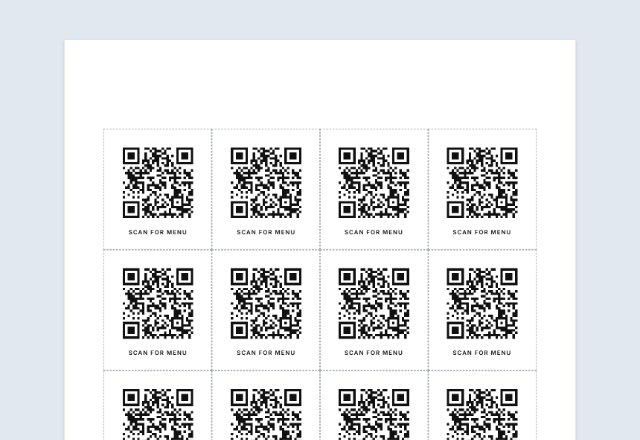
- QR code: any text or a web link, read by phone cameras. Good for links to a product page, a manual or a menu.
UPC and EAN numbers for products you sell
A UPC or EAN on a product sold in stores or on large marketplaces is not just a pattern of bars: the number identifies your company and the product. In the US those numbers come from GS1 US, either one at a time or as a company prefix that lets you number many products.
Numbers you invent, or buy from a reseller, may already belong to another company. Retailers check product barcodes against the GS1 records and can reject items whose numbers are not registered to the brand.
Once you have your numbers, this page can print them on labels: type the 11 or 12 digits for UPC-A, or 12 or 13 for EAN-13, and the check digit is added or checked for you. For your own shelves and stockroom, Code 128 needs no license.
Tips for barcodes that scan
- Print black bars on white labels. Coloured, glossy or see-through labels scan poorly.
- Keep the blank space on both sides of the bars (the quiet zone): it is built into every barcode here, so do not trim the labels close.
- Shorter codes give thicker bars. If the page warns that bars are thin, shorten the code, use the Compact design or a wider label.
- Print at 100% (“Actual size”), never “Fit to page”, and scan a test label with your scanner or phone before printing a whole batch.
- For the sharpest bars choose Print / Save PDF. The downloaded PDF is a high-resolution image and works for most scanners.
- Keep a spreadsheet of your codes and what they stand for; paste it straight in next time.
Checked in October 2026. Label sizes are the makers’ published sizes; check yours with a test page. Avery is a trademark of Avery Products Corporation and GS1, UPC and EAN are marks of GS1; SnapPaperwork is not connected with either.
Frequently asked questions
Is this barcode generator free?
Yes. It is free to use, needs no account or sign-up, and never adds a watermark or a SnapPaperwork logo to your labels.
Which label sheets does it print on?
Avery 5167 (80 per sheet), 5160 (30), 5161 (20), 5163 (10) and 5164 (6) on US Letter, and L7651 (65), L7160 (21), L7163 (14) and L7165 (8) on A4, plus the many other brands made to the same sizes.
Can I make UPC barcodes for my products here?
You can print them once you have the numbers. UPC and EAN numbers for products sold in stores are licensed from GS1; numbers you make up may belong to someone else and can be rejected by retailers. For your own stock, use Code 128.
Do I need to work out the check digit?
No. Type 11 digits for UPC-A, 12 for EAN-13, 7 for EAN-8 or 13 for ITF-14 and the check digit is added. If you type the full number, the check digit is checked and you are told if it is wrong.
Can I number asset tags in order?
Yes. Choose “Numbers in order”, type the first number (such as A-0001) and how many you need. Zeros and letters are kept, and a line such as your school or company can go above each barcode.
Will the barcodes scan?
They are standard barcodes with the right blank margins. Print at actual size on white labels, and scan a test label first. The page warns you when the bars would print too thin for the label you chose.
Is my information uploaded or stored on your servers?
No. The barcodes are made in your browser and nothing you type is sent to me. Your list is saved on your own device so it is there next time.