Free Visitor Badge & Hall Pass MakerPick the kind of badge and your badge sheet, then print badges with a line for the visitor’s name, or a name on each from a list. No sign-up, and nothing you type is uploaded.
Design
Whole page · the printed page has no watermark or logo.
Examples3 layouts filled in with made-up details. Open one to start with that layout, or print a blank template to fill in by hand.
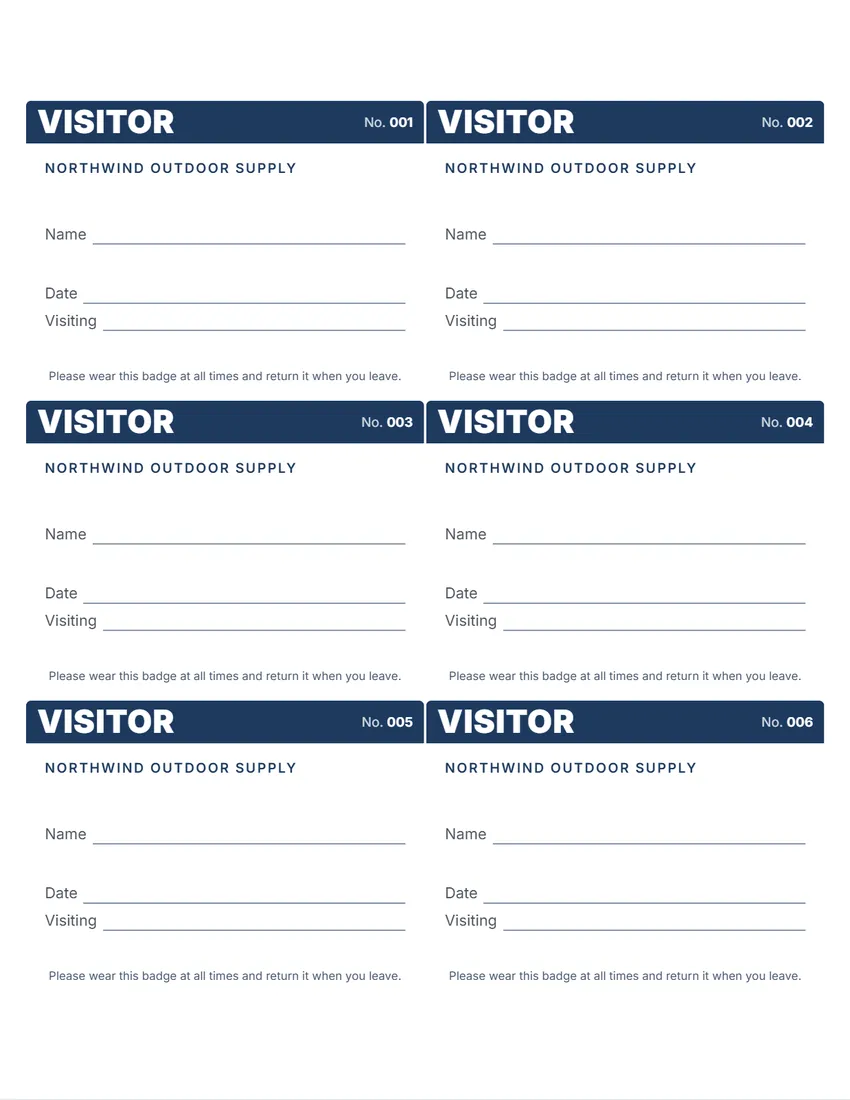 Default layout
BandThe big word in white on a band of colour.
Start with this layoutOpen
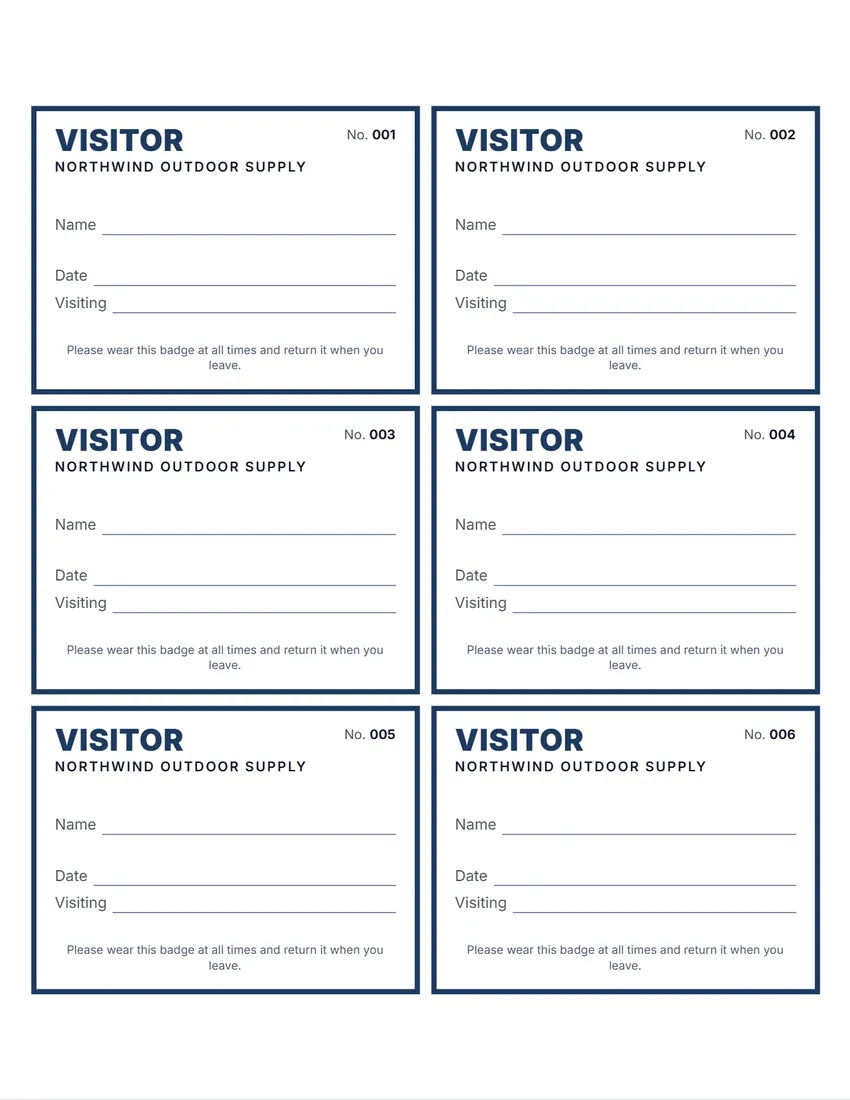 Layout
FramedA thick coloured frame, the big word in colour at the top.
Start with this layoutOpen
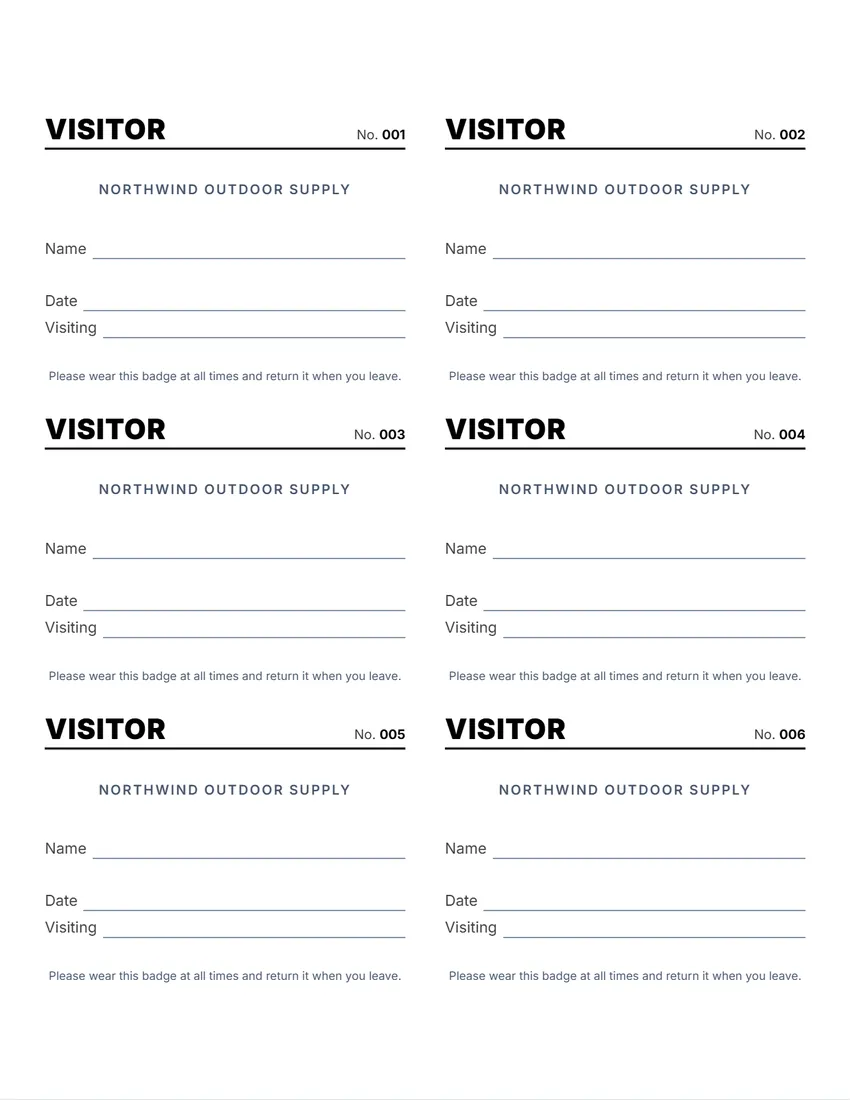 Layout
SimpleBlack and white, no logo. Least ink.
Start with this layoutOpen
Prefer to fill it in by hand? Print a blank template and write on it.
Related tools
Goes well with this one
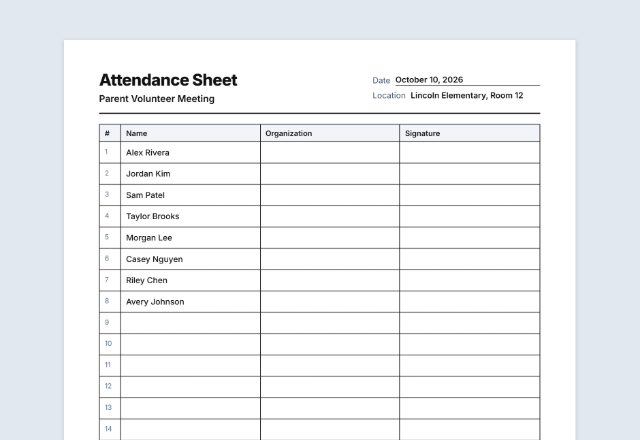
Was this tool useful?
Notice: Generated via SnapPaperwork. For your own office, school or site. Do not make badges that pretend to be official staff, security, police or press passes.
Something missing? Tell me what you need.
How to make visitor badges in 3 steps
-
Pick the kind and your sheet
Visitor, guest, contractor, volunteer or a school hall pass, and the number on your box of badges: adhesive labels or inserts for plastic holders.
-
Add your organization
Your name and logo, and the two lines to fill in: the date and who is visited, or the room and the teacher. Leave them empty to write them in at the desk.
-
Number them and print
Number the badges to count them back in at the end of the day. Print one page on plain paper first, then on the badges at 100%.
Using visitor badges well
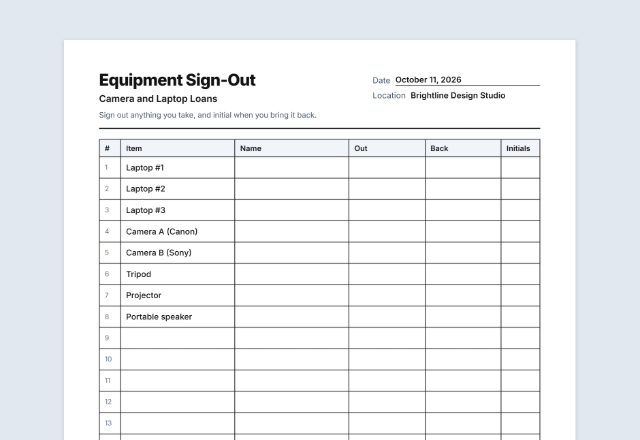
- Keep the badges at the front desk with your visitor sign-in sheet: the visitor signs in, gets a badge, writes the date and who they are visiting.
- Write the badge number on the sign-in sheet, so you can see at the end of the day which badges are still out.
- A different colour for each kind (visitors, contractors, volunteers) lets staff tell them apart at a glance.
- Adhesive badges are for one day. For badges you reuse, print on inserts for plastic holders and collect them at the door.
Hall passes for a classroom
- Print one or two passes per classroom with the room and the teacher’s name, on badge inserts or card stock, and laminate them so they last the year.
- Number them if a teacher keeps more than one, and keep a short sign-out list by the door.
- Rename the two lines in Wording if your school uses something else, such as “Destination” or “Time out”.
Badge sheets this tool fits
- Avery 5392: badge inserts, 4 × 3 in, 6 per sheet (the default: room for everything)
- Avery 5395 and 8395: adhesive name badges, 3⅜ × 2⅓ in, 8 per sheet
- Avery 5390: badge inserts, 3½ × 2¼ in, 8 per sheet
- Avery L7165 (A4): 99.1 × 67.7 mm labels, 8 per sheet
- Other brands print the same numbers as “compatible with”. Avery is a trademark of Avery Products Corporation; SnapPaperwork is not connected with it.
Printers feed paper slightly differently, so always test on plain paper first.
Frequently asked questions
Is this visitor badge maker free?
Yes. It is free to use, needs no account or sign-up, and never adds a watermark or a SnapPaperwork logo to your badges.
Can I print badges with the visitor’s name already on them?
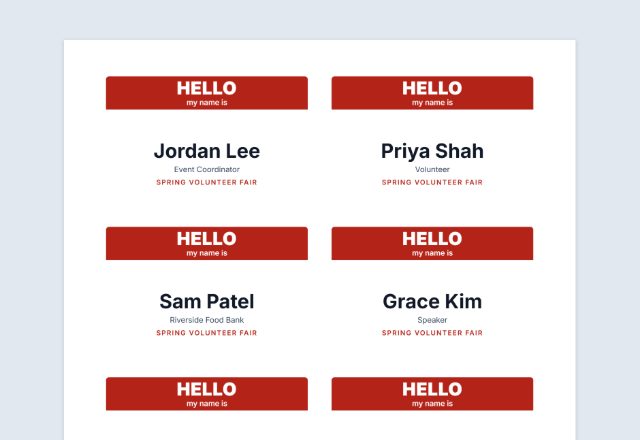
Yes. Choose “A name on each badge, from a list” and paste the names, one per line, for visitors you expect. Otherwise each badge has a line to write the name on.
Can I print the date on every badge?
Yes. Type the date in the first line and it prints on every badge; leave it empty for a line to write on. You can rename both lines in Wording.
Can I number the badges?
Yes. Turn on numbering and each badge gets the next number, such as 001 to 006, so you can count them back in.
Can I make school hall passes?
Yes. Choose “Hall pass”: the badge says HALL PASS, with lines for the room and the teacher. Print on badge inserts or card stock.
Can I start on a sheet that is partly used?
Yes. Choose “Start at badge” and pick the first empty badge, counting left to right, row by row.
Is my information uploaded or stored on your servers?
No. Everything you type stays in your browser and is never sent to me. It is saved on your own device so it is there next time.