Free Printable Certificate TemplateChoose the kind of certificate, add the names, check the preview, then print the certificates or save them as a PDF. No sign-up, and nothing you type is uploaded.
Layout
Whole page · the printed page has no watermark or logo.
Some certificates are longer than their pages.
Examples3 layouts filled in with made-up details. Open one to start with that layout, or print a blank template to fill in by hand.
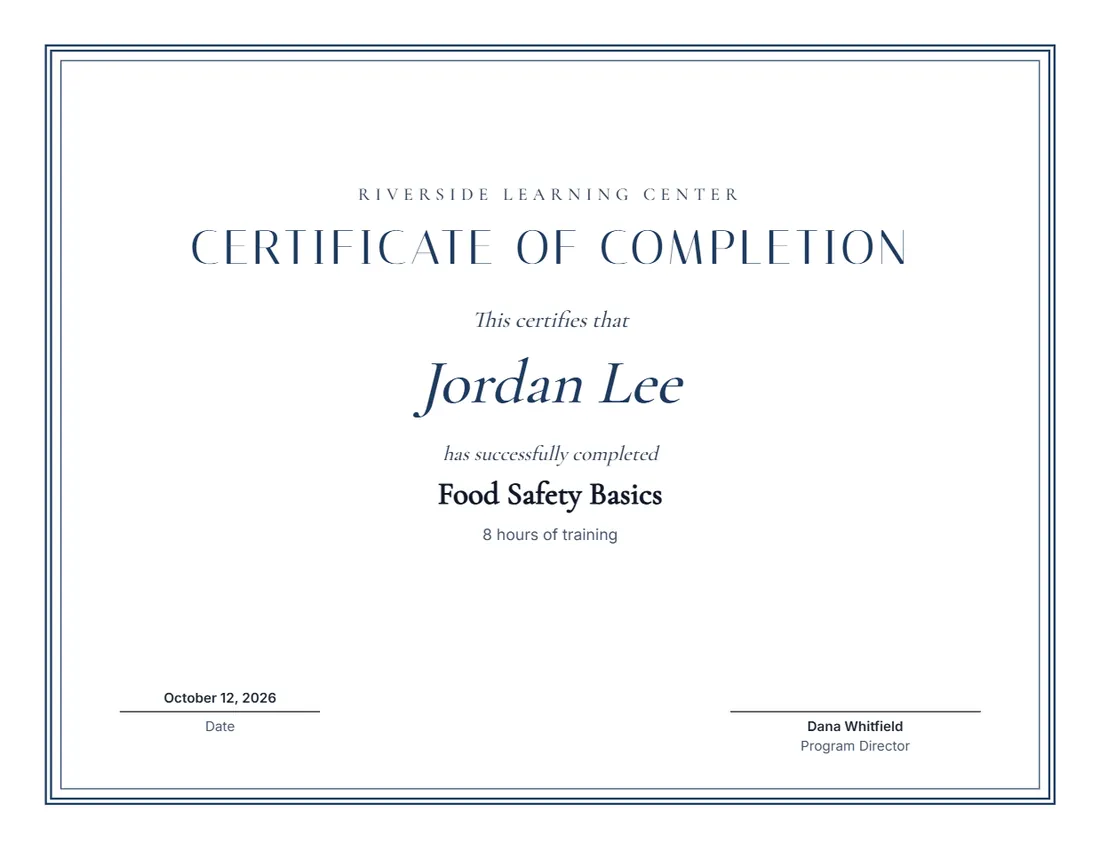 Default layout
ClassicDouble frame, serif type, centred.
Start with this layoutOpen
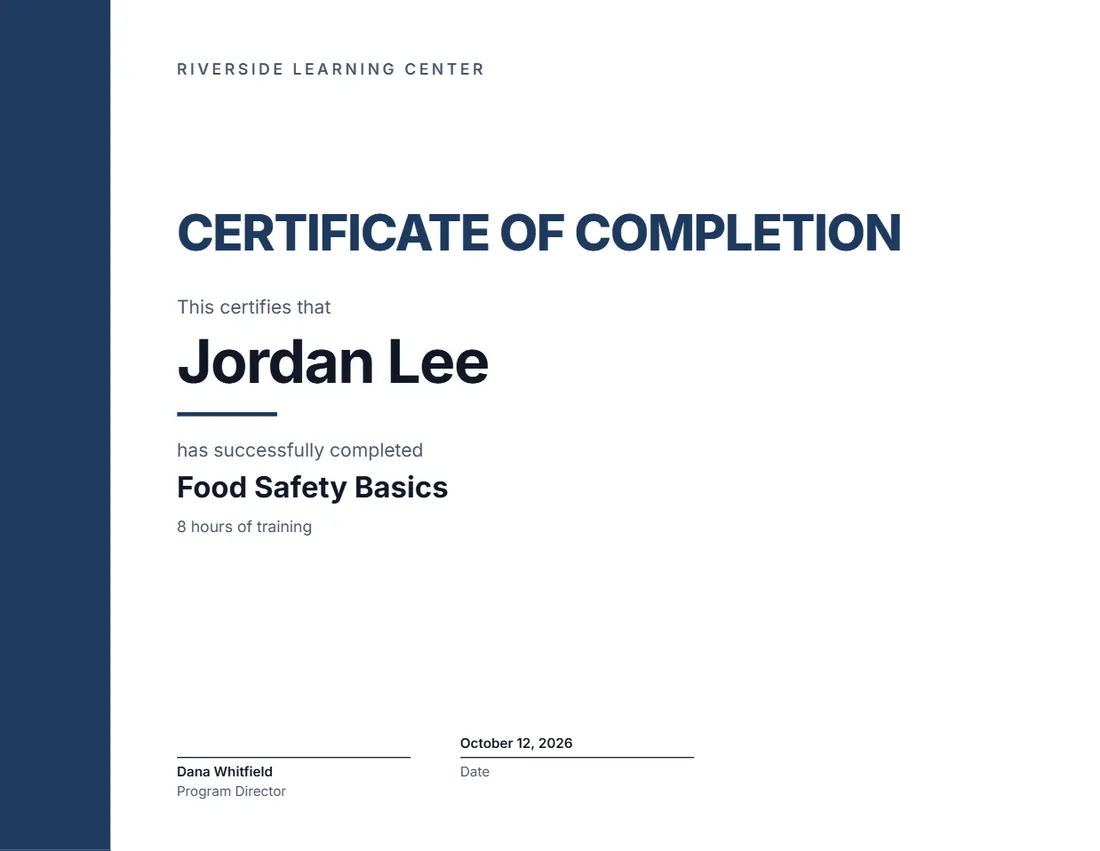 Layout
ModernA band of colour on the left, bold sans type, left-aligned.
Start with this layoutOpen
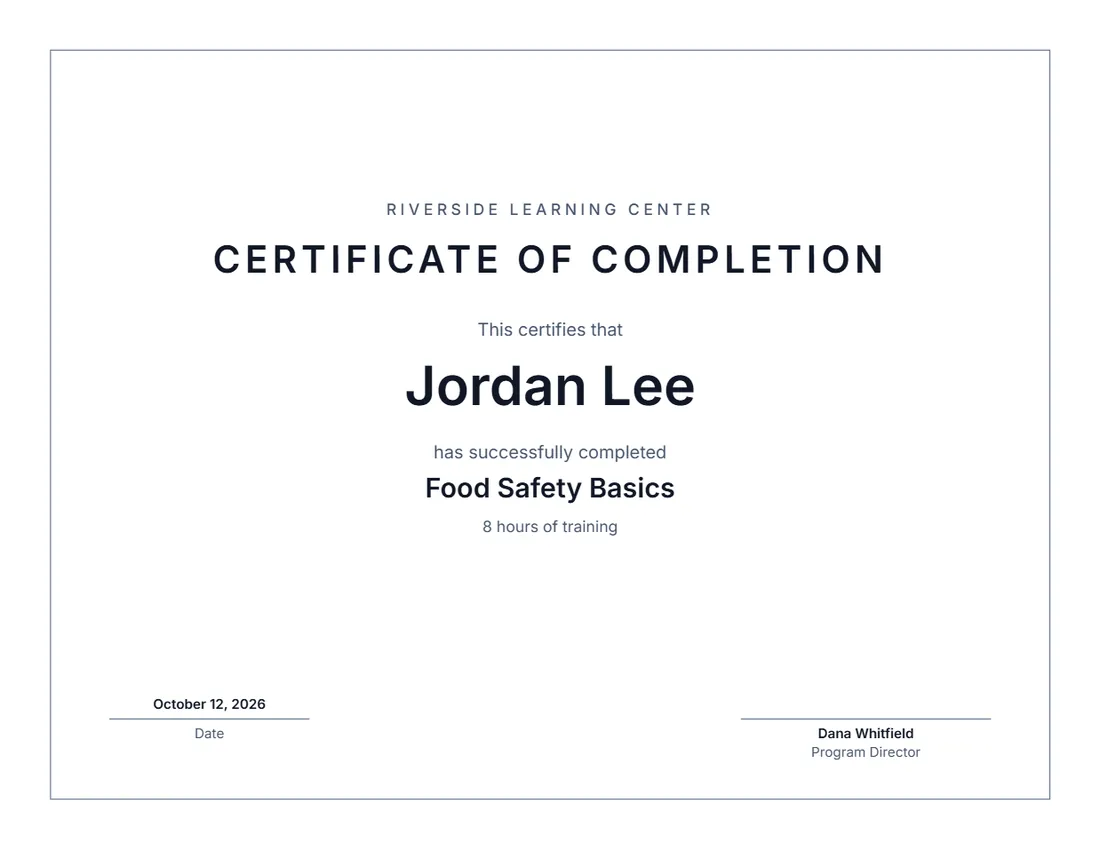 Layout
SimpleThin frame, black and grey, no logo. Saves ink.
Start with this layoutOpen
Prefer to fill it in by hand? Print a blank template and write on it.
Related tools
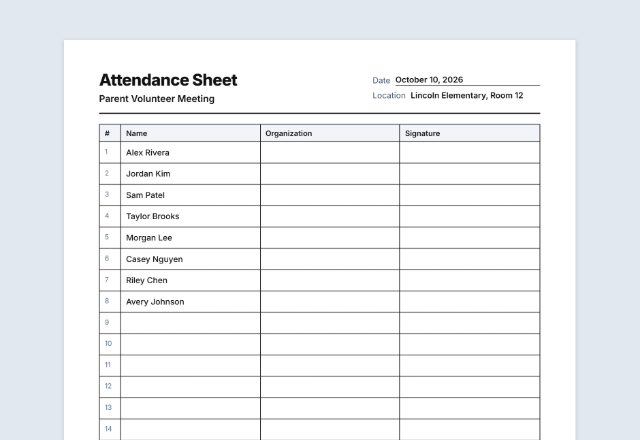
Goes well with this one
Was this tool useful?
Notice: Generated via SnapPaperwork. For your own courses, awards and events. Do not use it to make a qualification, licence or diploma that was not earned, or to copy another organization’s certificate.
Something missing? Tell me what you need.
What is a certificate?
A certificate is a printed page that recognizes someone for finishing a course, winning an award or taking part in an event. It shows the person’s name, what it is for, the date and who signed it. Print one page for each person on your list.
How to make certificates in 3 steps
-
Choose the kind of certificate
Completion for a course or training, achievement for an award, appreciation for volunteers or staff, or participation. The title and the words around the name change to match, and you can rewrite them.
-
Add the names and the details
Type or paste one name per line: each person gets their own certificate, one per page. Add what it is for, the date, your organization, a logo and who signs.
-
Print or save the PDF
Print on card stock at actual size, in landscape or portrait, or save one PDF with every certificate to print later or email.
What a certificate should include
- A clear title, such as Certificate of Completion
- The person’s full name, spelled the way they want it
- What it is for: the course, award or occasion, and details such as hours or a grade
- The date, and a certificate number if you keep a register
- The name of your organization, and your logo
- The signature, name and title of whoever awards it
Wording ideas
- Completion: “This certifies that … has successfully completed … 8 hours of training.”
- Achievement: “This certificate is presented to … in recognition of … outstanding results this year.”
- Appreciation: “This certificate is presented to … with sincere thanks for … your volunteer service.”
- Participation: “This certifies that … took part in … the Spring Science Fair.”
- Employee of the month: choose Achievement, then write “Employee of the Month, March” in the For line.
Tips for printing certificates
- Check the spelling of every name before you print: paste them straight from your class list or sign-in sheet.
- Use card stock (65 to 110 lb, or 170 to 300 gsm) or ready-made certificate paper; print one test page on plain paper first.
- Print at 100% (“Actual size”). If your printer asks, choose Landscape for a landscape certificate.
- Sign in blue or black ink, or draw a signature on screen once and it goes on every certificate.
- Number the certificates and keep a list of who received which number, so a copy can be checked later.
Practical tips for schools, trainers, clubs and teams.
Frequently asked questions
Is this certificate maker free?
Yes. It is free to use, needs no account or sign-up, and never adds a watermark or a SnapPaperwork logo to your certificates.
Can I make certificates for a whole class at once?
Yes. Type or paste the names, one per line, into “Who gets one”. Each person gets their own certificate, one per page, in one print or one PDF. Up to 100 at a time.
Can I print it landscape?
Yes. Landscape (sideways) is the default; choose Portrait if you prefer it upright. Both work on US Letter and A4.
Can I add a signature?
Yes. Draw a signature on screen and it is printed on every certificate, or leave it empty and sign each one in ink. You can add a second signer, such as a teacher and a principal.
Can I change the words?
Yes. Click any text on the certificate to rewrite it, including the title and the lines around the name. The “Wording” section lists everything with the words printed now.
Is my information uploaded or stored on your servers?
No. Everything you type stays in your browser and is never sent to me. The form, your logo and your signature are saved on your own device so they are there next time.
What paper should I use?
Card stock or certificate paper looks best. Print a test page on plain paper first to check the layout, then print on the good paper at 100% (“Actual size”).