Free Printable Event Ticket TemplateFill in the event, check the preview, then print the sheets or save them as a PDF. No sign-up, and nothing you type is uploaded.
Layout
Whole page · the printed page has no watermark or logo.
This ticket sheet is longer than its page.
Examples3 layouts filled in with made-up details. Open one to start with that layout, or print a blank template to fill in by hand.
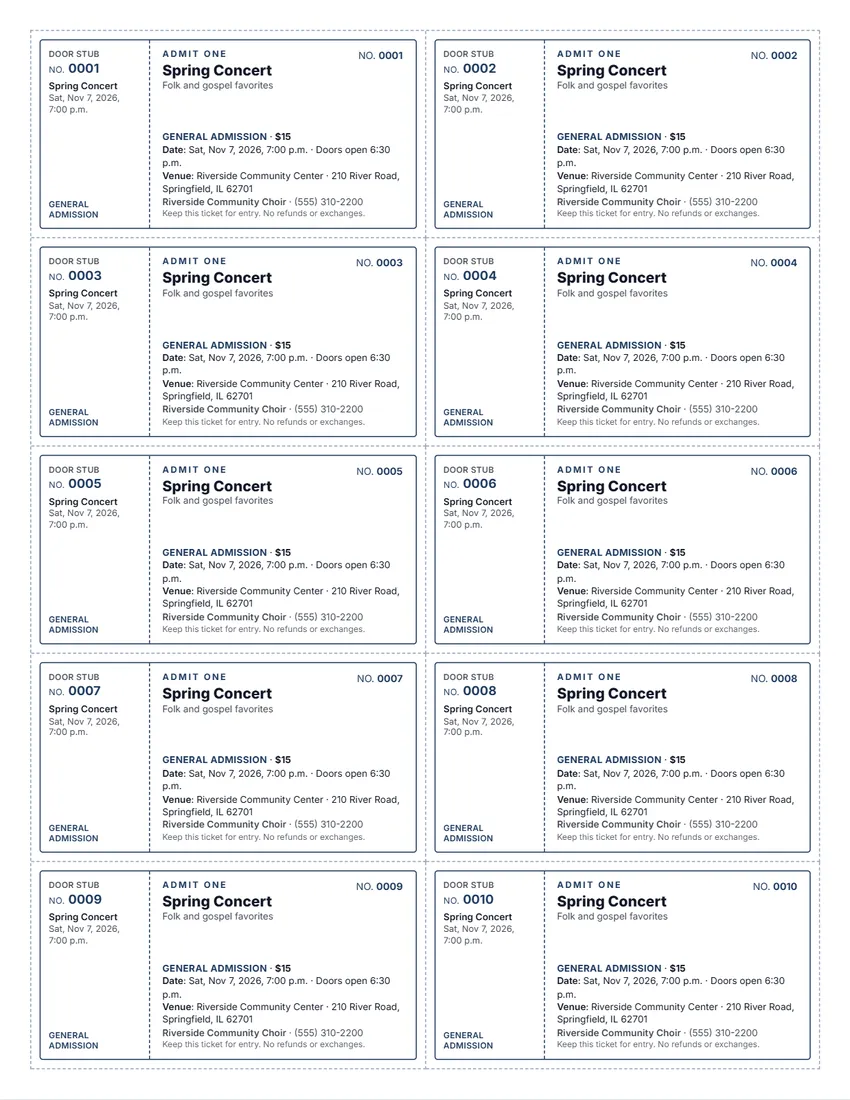 Default layout
ClassicRuled ticket with a door stub, the event in large type.
Start with this layoutOpen
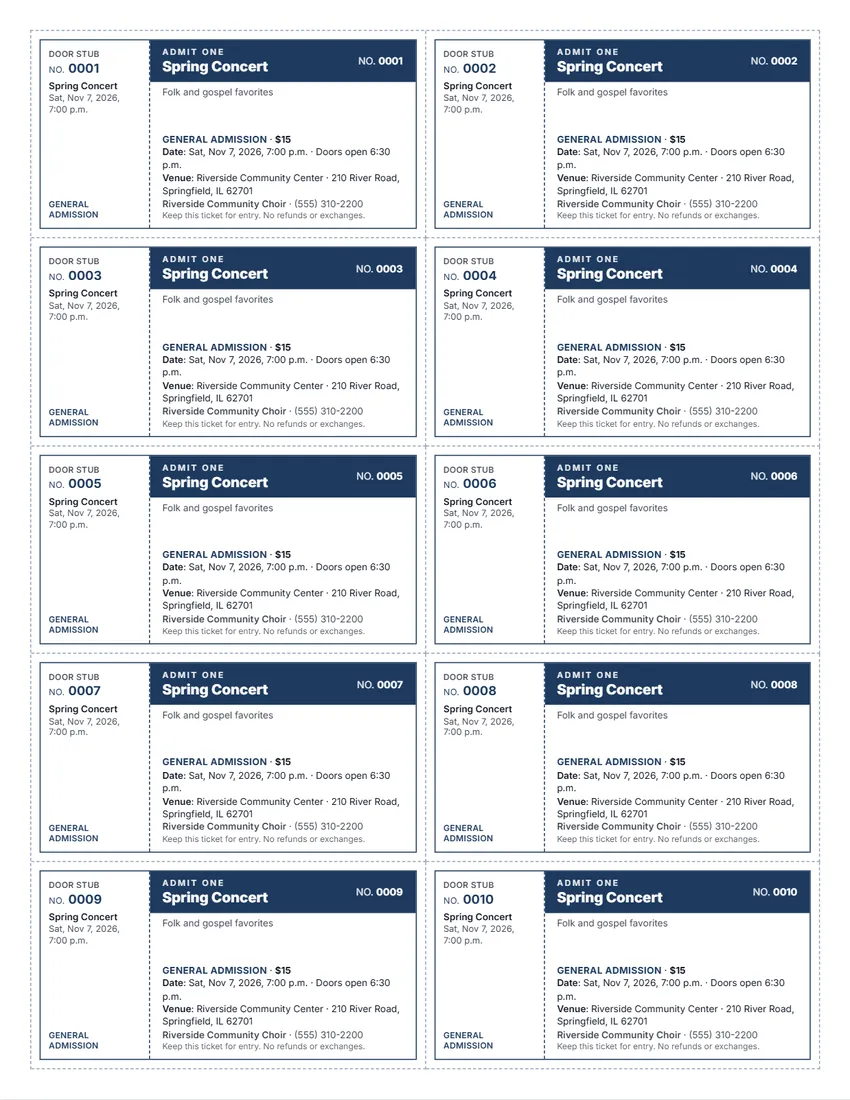 Layout
BoldA solid coloured band with the event in white.
Start with this layoutOpen
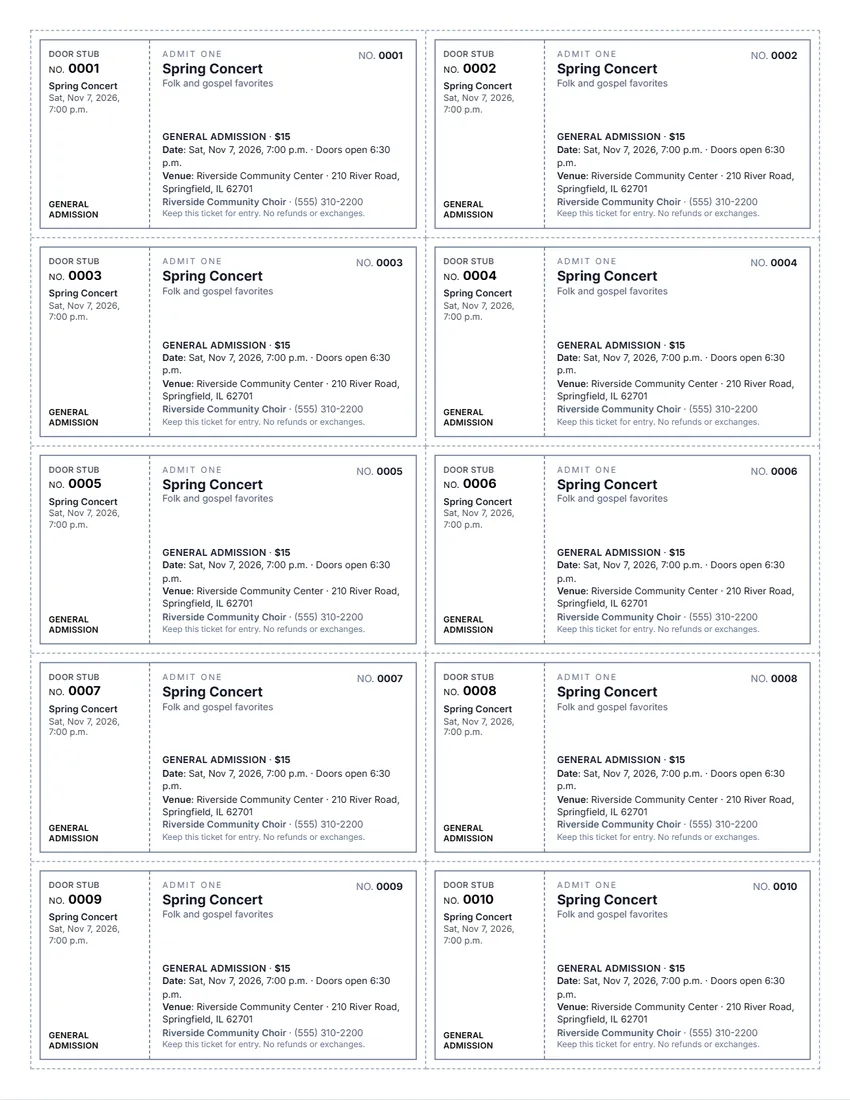 Layout
SimpleBlack and grey, no logo: easy on ink.
Start with this layoutOpen
Prefer to fill it in by hand? Print a blank template and write on it.
Related tools
Goes well with this one
Was this tool useful?
Notice: Generated via SnapPaperwork. For your own events only. Do not copy another event’s tickets or sell tickets for an event that is not happening.
Something missing? Tell me what you need.
What is an event ticket template?
An event ticket template prints tickets for a concert, show, fundraiser or class, several to a page. Each ticket has the event name, the date, the place and the price, and can be numbered with a stub to keep. Print on card stock, cut along the lines and hand them out.
How to make event tickets in 3 steps
-
Fill in the event
Name, date and time, when doors open, the venue, the ticket type and the price. Leave the price empty for free events.
-
Choose the tickets
5, 8 or 10 per page, a door stub, numbers, and lines for section, row and seat if seats are assigned. Pick a design and an ink colour.
-
Print, cut and count
Print on card stock, cut along the dashed lines, and keep a note of the numbers you hand out or sell.
What to put on an event ticket
- The event name, and who is performing or what is included
- The date, start time and when the doors open
- The venue and its address
- The ticket type (general admission, adult, child, VIP) and the price
- A number on each ticket, and a door stub with the same number
- Section, row and seat, for assigned seating
- Who is running the event and how to reach them
- The small print: keep the ticket for entry, refunds
Tips for selling and checking tickets
- Number every ticket and keep a list of which numbers each seller has. It makes counting the money and the people at the door easy.
- Print each ticket type in its own ink colour (for example navy for adults, teal for children) so the door can tell them apart at a glance.
- Card stock (65 to 110 lb, or 170 to 300 gsm) feels like a real ticket and is harder to copy than plain paper. Check your printer can take it.
- At the door, tear off the stub and keep it: the stubs tell you how many people came in.
- Do not sell more tickets than the venue can hold. Ask the venue for its capacity.
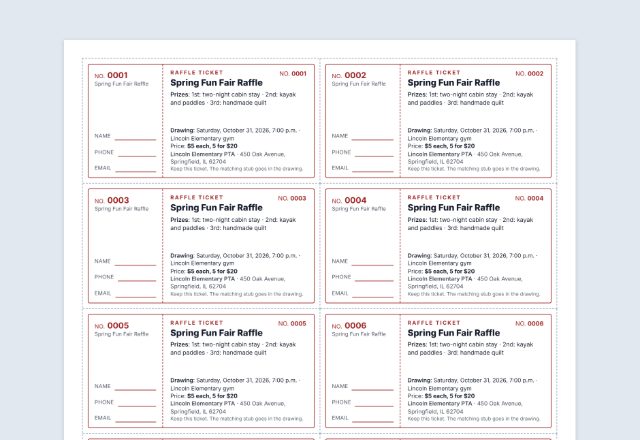
- For a raffle or prize drawing, use the raffle ticket maker instead: raffles have their own rules in many states.
General advice for small events, not legal advice.
Frequently asked questions
Is this event ticket maker free?
Yes. It is free to use, needs no account or sign-up, and never adds a watermark or a SnapPaperwork logo to your tickets.
How many tickets fit on a page?
5 wide tickets, 8 or 10 smaller ones on Letter or A4 paper. Choose up to 25 pages at a time; the numbers carry on from page to page.
Can I number the tickets?
Yes. Each ticket gets its own number, and its door stub the same one. Zeros in front are kept (0001, 0002…). Use “Next batch” to carry on where the last pages ended. Untick “Number the tickets” for unnumbered tickets.
Can I make free tickets?
Yes. Leave the price empty and no price is printed, or write “Free” in the price box.
Can I make tickets with seat numbers?
Tick “Lines for section, row and seat” and each ticket gets lines to write the seat by hand. Every ticket shows the same event details.
Can I make raffle tickets here?
Use the raffle ticket maker instead: its stubs have lines for the buyer’s name and phone number, and it shows what some states require on raffle tickets.
Is my information uploaded or stored on your servers?
No. Everything you type stays in your browser and is never sent to me. The form and your logo are saved on your own device so they are there next time.
How do I print the tickets?
Click “Print / Save PDF” and print at 100% (“Actual size”), not “Fit to page”, so the cut lines are in the right place. “Download PDF” saves a file you can take to a print shop.