Business Card with QR Code MakerPut your details and a QR code on a card: one scan saves your contact or opens your website. Print 10 per sheet, front and back. Nothing you type is uploaded.
Design
Whole page · the printed page has no watermark or logo.
More versions of this form
- QR code generator
- Email & SMS QR code
- Text QR code
- vCard QR code
- Facebook QR code
- Instagram QR sign
- TikTok QR sign
- YouTube QR code
- Menu QR sign
- Venmo & PayPal QR sign
- Yelp & Tripadvisor QR
- RSVP & check-in QR
- Wedding RSVP QR card
- Wedding photo QR sign
- QR on Avery labels
- QR code stickers
- Call us QR code
- Google Form QR code
- QR code for a PDF
- Spotify & Apple Music QR
- QR code scanner
- Bulk QR codes
- Telegram QR code
- Linktree QR code
- Circle QR code
- Google Maps QR code
- Sample QR codes
Related tools
Goes well with this one
Was this tool useful?
Notice: Generated via SnapPaperwork. For your own business cards. Do not print cards in someone else’s name, or for a business you have no right to represent.
Something missing? Tell me what you need.
A business card that saves your contact with one scan
A QR code on a business card turns it into a shortcut to you. One scan can save your name, phone and email as a new contact, or open your website, with no typing on the other side.
The code is static: your details are inside the code itself, so there is no subscription to keep it alive and nothing that can expire. It is made in your browser, and nothing you type or upload leaves your device.
How to make a business card with a QR code in 3 steps
-
Add your details
Type your name, and any of job title, company, phone, email, website and address you want on the card. Add a logo if you have one, and pick a design and a colour.
-
Choose what the code holds
Your contact details, or just your website link. The page reads the code back and tells you how wide it prints. Scan it from the screen with your own phone as well.
-
Print and cut
Print 10 cards per sheet on business-card sheets or card stock, at actual size. Do a test page on plain paper first, then cut.
Contact details or a website link?
A contact code holds your details in the vCard format. The phone offers to save them as a new contact, with each detail in the right field. The price is size: every detail you add makes the squares of the code smaller.
A website link is short, so the squares are big and easy to scan. It also lets you change what people see later, because you control the page the link opens. Put your phone and email on that page.
How big should the code be on a card?
As a rule of thumb, aim for about half a millimetre per square (counting the white margin around the code), and never print a code narrower than about 2 cm. A longer text means more squares, so the code has to be bigger to stay easy to scan.
The page works out the squares for your code and tells you how wide it prints on the card. If it is too small, untick some details (an address is the heaviest), use the website link, or put the code on the back, where it can be much bigger.
Front or back?
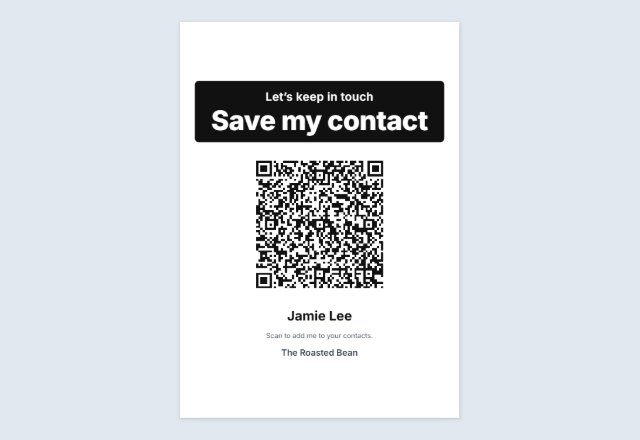
On the front, the code sits next to your details and is seen first. On the back, it can be big, with the words “Scan to save my contact” under it, and the front keeps all its room for text.
A back is printed on its own pages after each page of fronts. To use both sides, print double-sided and flip on the long edge.
Paper, sizes and printing both sides
- Cards are 3½ × 2 in on US Letter (laid out like perforated business-card sheets, 10 per sheet) or 85 × 54 mm on A4.
- The margins are the usual ones for these sheets and are not checked against any maker’s template. Print the first page on plain paper with the cut lines on, and hold it against your card sheet.
- Print at 100% (“Actual size”), not “Fit to page”, or the cards will not line up with the sheet.
- Two-sided printing: print one test sheet on plain paper and hold it to the light to check the backs line up with the fronts.
- Turn the cut lines off when you print on perforated sheets.
What to put on a business card
- Your name, large and easy to read.
- What you do: a job title, or a few words about your business.
- One or two ways to reach you. Too many lines make a busy card.
- A logo, if you have one that reads clearly when small.
- A QR code with a few words telling people what it does.
QR Code is a registered trademark of DENSO WAVE INCORPORATED.
Frequently asked questions
Is this business card maker free?
Yes. It is free to use, needs no account or sign-up, and never adds a watermark or a SnapPaperwork logo to your cards.
Does the QR code expire?
No. It is a static code with your details or your link inside it, so there is no subscription and no account that can lapse. It works for as long as the website you link to is online.
Will the phone save my contact?
A contact code is in the standard vCard format, which phones know how to read. The camera app on current iPhones and Android phones usually offers to add the contact. Scan your own card to check that each detail lands in the right field.
Why does the page say my code is too small?
Each detail you add to a contact code adds squares, and the squares get smaller on a card this size. Untick some details, use the website link, or put the code on the back, where it prints bigger.
Can I put the code on the back of the card?
Yes. Choose “Big, on the back”. The back is printed on its own pages, after each page of fronts, for two-sided printing.
Can I add my logo?
Yes. Upload a PNG or JPG and it appears on the card. It is not placed inside the QR code, so the code stays as easy to scan as possible.
Can I change my details after printing?
Not on the printed cards. If your phone number may change, make the code a link to a page you control and keep that page up to date.
Are my details uploaded?
No. The cards and the code are made in your browser. What you type, and your logo, are saved only on your own device so the form is there next time. On a shared computer, press “Clear Form” when you are done.