Free QR Code for a PDFShare your PDF, paste its link, and print a sign. This page makes the code; it does not host your file.
Static code · made in your browser · no watermark.
Pick a sign above.
More QR codes
Other things to put a QR code on
Each of these makes the code and the paper it goes on, ready to print.
 QR code scannerRead a code from a picture, a screenshot or the camera
 WiFi QR signGuests scan to join, no typing the password
 Google review QR signAsk for reviews at the counter
 Instagram follow sign“Follow us” with your @name, for the counter
 vCard contact QR codeOne scan saves your name, phone and email
 Email or text us signOpens a ready-to-send email or text to you
 Text QR codeShows a message, clue or code word. No link
 TikTok QR signOpens your profile or one video
 YouTube QR codeYour channel, a video or a playlist
 Facebook page QR codeYour page, group or event
 Venmo, PayPal or Cash App sign“Pay with” and your name, for a stall or a tip jar
 Menu QR sign“Scan for our menu” for every table
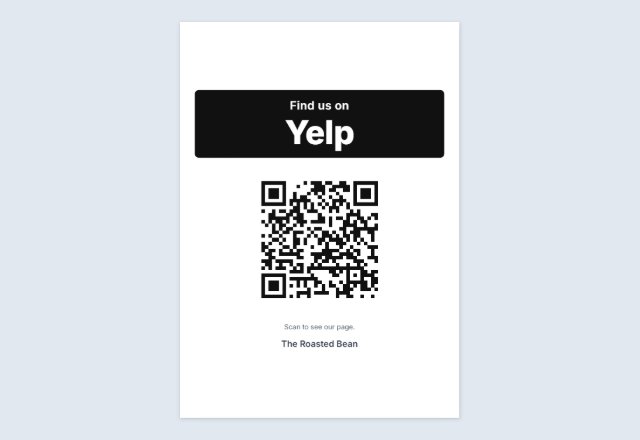 Yelp or Tripadvisor signWorded to follow each site’s rules
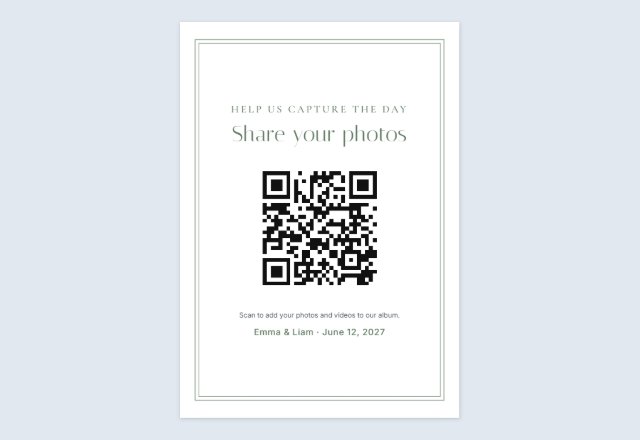 Wedding photo sharing signGuests add their photos to your album
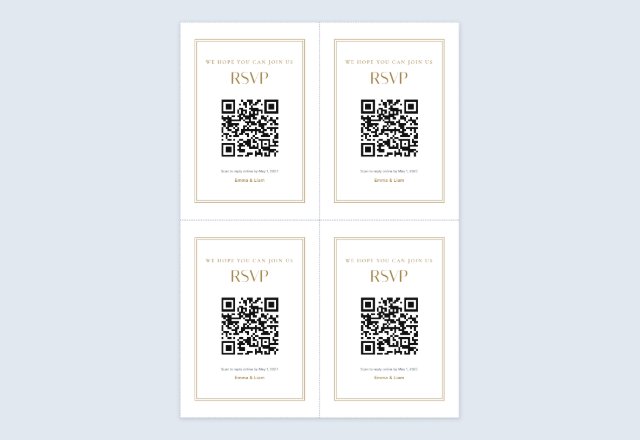 Wedding RSVP QR cards4 cards per sheet for the invitations
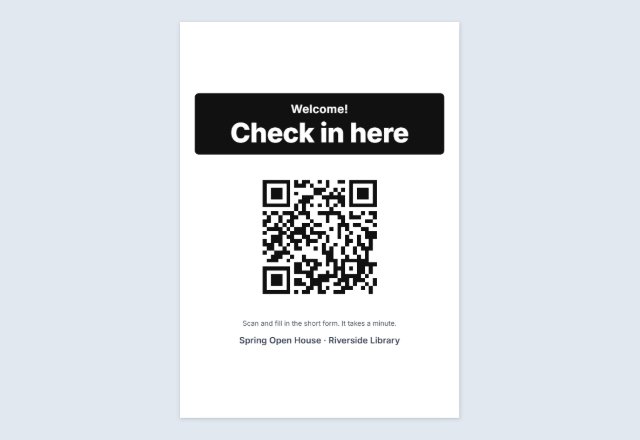 Event check-in signRSVP or check in on their own phone
 Google Form QR codeLink to your form on a “Fill in our form” sign
 Spotify & Apple Music QRA “Listen on” sign for your song, album or playlist
 Call us QR codeYour number ready to dial, on a “Call us” sign
 Google Maps QR codeA “Find us” sign that opens your place on the map
 Telegram QR codeYour username, channel or group, on a “Join us” sign
 Linktree QR codeOne code that leads to all your links
 Circle QR codeYour code in a round badge, in dots or rounded squares
 Sample QR codes for testingHarmless test codes, and one code at six sizes to print
 Bulk QR code generatorMany different codes from a list: sheets or a ZIP of files
 Business card with a QR codeYour details and a code that saves your contact, 10 per sheet
 QR code on Avery labelsThe same code on every label of a sheet
 Square or round QR stickersA sheet to print and cut, any size
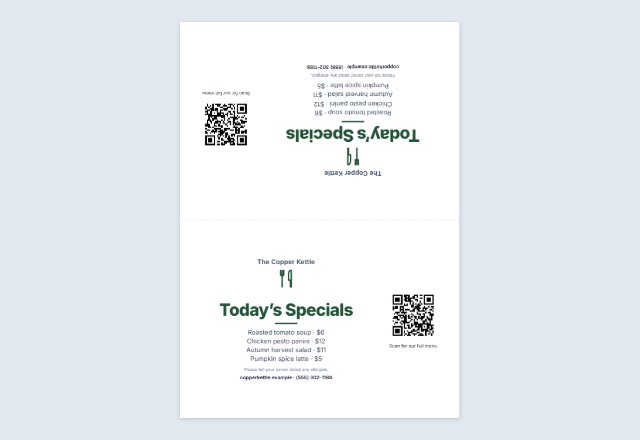 Table tent with a QR codeMenu, specials or offer folded on every table
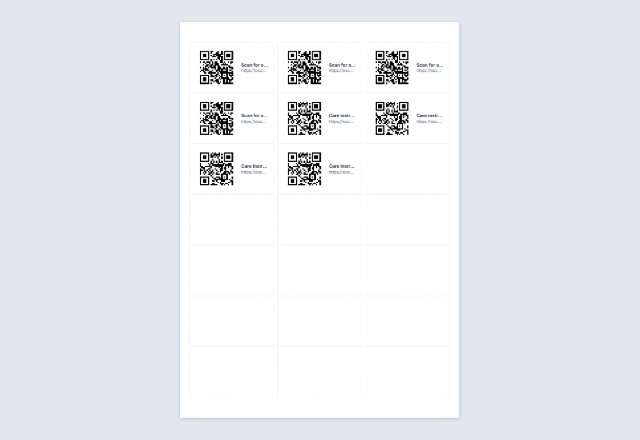 Numbered QR code labelsA different code on every Avery label, from a list
Related tools
Goes well with this one
Was this tool useful?
Notice: Generated via SnapPaperwork. For your own links and details. Do not make codes that pretend to be another business, or stick your code over someone else’s.
Something missing? Tell me what you need.
A QR code that opens your PDF
To put a PDF behind a QR code, the PDF has to be online first. I don’t host files here: nothing you type or paste on this page is sent to a server. You put the PDF on Google Drive, Dropbox, OneDrive or your own website, share it so that anyone with the link can open it, and paste that link here. The code opens the link.
That has one consequence worth knowing before you print: if the file is deleted, moved, or its sharing is turned off, the printed code stops working. Print the sign only when the PDF is final, and test it on another phone.
How to make a QR code for a PDF
-
Put the PDF online and share it
Use the steps below for your provider, and choose a link that anyone can open.
-
Paste the link and choose where it lives
Choose Google Drive, Dropbox, OneDrive or your own website. The words on the sign follow your choice.
-
Test and print
Scan the code with a phone that is not yours. Then print the sign, or save the code as a PNG or SVG.
Google Drive
Google’s help page gives these steps: select the item and click Share. Under “General access”, click the down arrow and choose “Anyone with the link”. Select the role, click “Copy link” and click Done.
The page also says that if you use a work or school account, your administrator may restrict external link sharing.
Dropbox
Dropbox’s help page says: hover over the file you’d like to share and click Share, then click Copy link. Click Manage to choose between a link for viewing and a link for editing, then click Copy link again to copy it.
For a PDF on a sign, a link for viewing is the sensible choice: Dropbox says that anyone with the link can preview the content without editing it. The page also says that to view or edit the shared content, a person must have a Dropbox account and be logged in, and that someone without an account can only preview the file. Test the link from a phone that is not signed in to Dropbox.
OneDrive
Microsoft’s help page describes it this way: select the circle icon on the file, select the Share icon, then select “Copy Link”. Select the settings gear icon and choose the “Anyone” option. Under “Other settings”, the “Allow editing” box is turned on by default, so untick it for a PDF people only need to read. Select Apply, then copy the link.
The page also lists settings that change who can open a link, such as an expiration date, and says that an organization can limit the “Anyone” option on work or school accounts.
Source: Microsoft Support: Share files and folders in Microsoft OneDrive
Your own website
If the PDF is on your website, paste its web address, the one that ends in .pdf. Open it in a private window first to make sure it loads without a login.
When the code stops working
The printed code only holds the link, so it lasts only as long as the file behind it. Dropbox’s help says a shared link stops working when its file or folder is deleted. Microsoft’s help says OneDrive links stop working if the file or folder is moved within your OneDrive, and that a link stops working after the expiration date you set. Turning sharing off has the same effect.
If you replace the PDF later, check whether your provider lets you keep the same link when you upload a new version. If it creates a new link, the printed codes will need replacing.
Sources: Dropbox Help: Troubleshoot shared links; Microsoft Support: Share files and folders in Microsoft OneDrive
QR Code is a registered trademark of DENSO WAVE INCORPORATED. Google Drive, Dropbox and OneDrive are trademarks of their owners; SnapPaperwork is not connected with any of them.
Frequently asked questions
Do you store my PDF?
No. This page never receives your PDF or your link. It makes the QR code in your browser, and the code only holds the web address you paste.
Can I use a link that needs a login?
It will open for you, but not for the people who scan it. Share the file so that anyone with the link can open it, and test it from a phone that is not signed in.
What happens if I delete or rename the file?
The code stops working, because the link no longer points to the file. Print the sign when the PDF is final.
Does it work for a long PDF, such as a menu or a manual?
Yes, a link works for any size. The code is the same size whether the PDF has one page or a hundred.
Does the code expire?
The code itself never expires, because it is a static link. The link behind it lasts as long as the file stays shared.
Is it free?
Yes. No account and no watermark.