Free Google Form QR Code GeneratorPaste your Google Form link. Print a sign so people can scan it and fill in the form on their phones.
Static code · made in your browser · no watermark.
Pick a sign above.
More QR codes
Other things to put a QR code on
Each of these makes the code and the paper it goes on, ready to print.
 QR code scannerRead a code from a picture, a screenshot or the camera
 WiFi QR signGuests scan to join, no typing the password
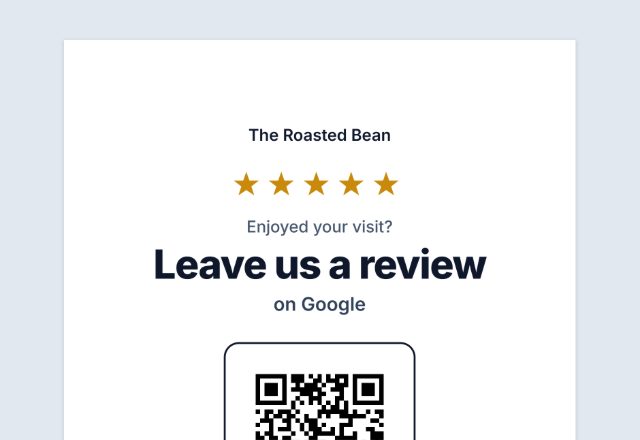
 Google review QR signAsk for reviews at the counter
 Instagram follow sign“Follow us” with your @name, for the counter
 vCard contact QR codeOne scan saves your name, phone and email
 Email or text us signOpens a ready-to-send email or text to you
 Text QR codeShows a message, clue or code word. No link
 TikTok QR signOpens your profile or one video
 YouTube QR codeYour channel, a video or a playlist
 Facebook page QR codeYour page, group or event
 Venmo, PayPal or Cash App sign“Pay with” and your name, for a stall or a tip jar
 Menu QR sign“Scan for our menu” for every table
 Yelp or Tripadvisor signWorded to follow each site’s rules
 Wedding photo sharing signGuests add their photos to your album
 Wedding RSVP QR cards4 cards per sheet for the invitations
 Event check-in signRSVP or check in on their own phone
 QR code for a PDFOpens a PDF you shared on Drive, Dropbox, OneDrive or your site
 Spotify & Apple Music QRA “Listen on” sign for your song, album or playlist
 Call us QR codeYour number ready to dial, on a “Call us” sign
 Google Maps QR codeA “Find us” sign that opens your place on the map
 Telegram QR codeYour username, channel or group, on a “Join us” sign
 Linktree QR codeOne code that leads to all your links
 Circle QR codeYour code in a round badge, in dots or rounded squares
 Sample QR codes for testingHarmless test codes, and one code at six sizes to print
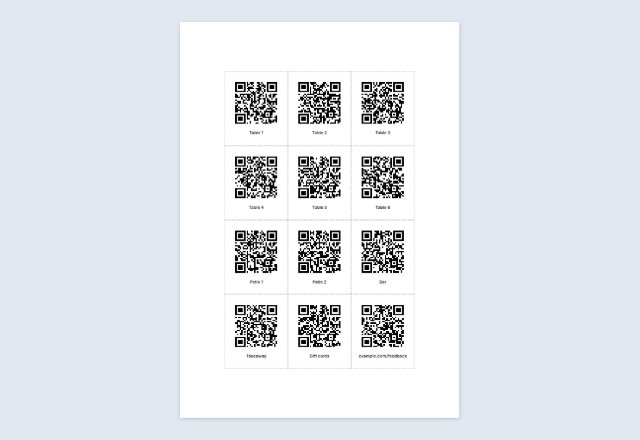 Bulk QR code generatorMany different codes from a list: sheets or a ZIP of files
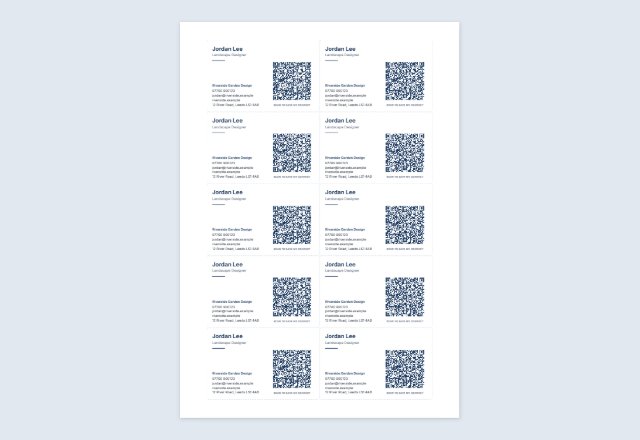 Business card with a QR codeYour details and a code that saves your contact, 10 per sheet
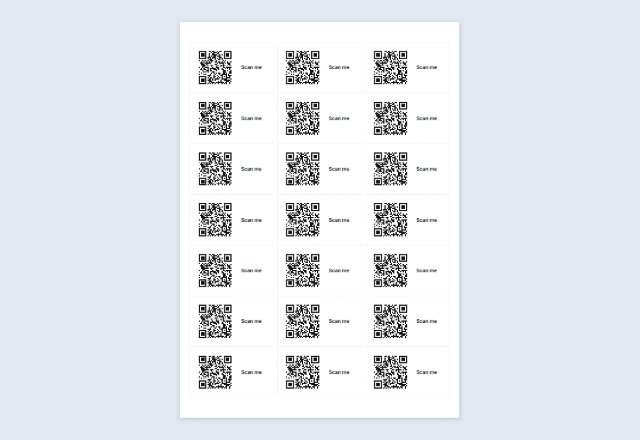 QR code on Avery labelsThe same code on every label of a sheet
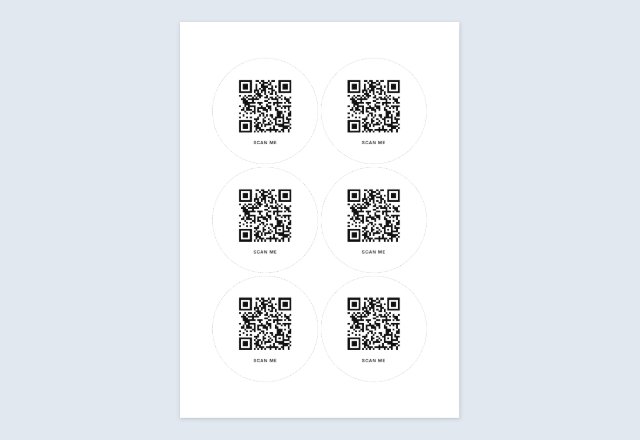 Square or round QR stickersA sheet to print and cut, any size
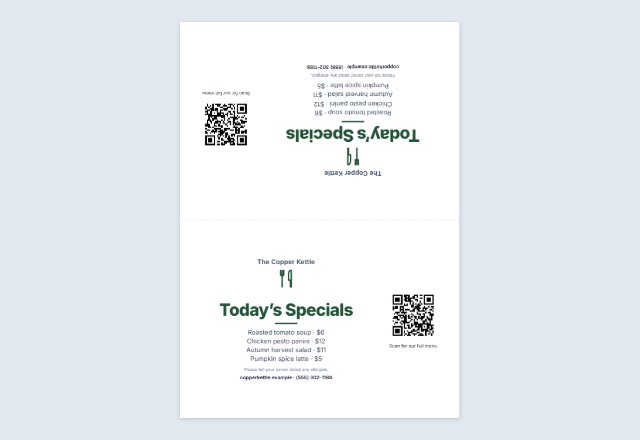 Table tent with a QR codeMenu, specials or offer folded on every table
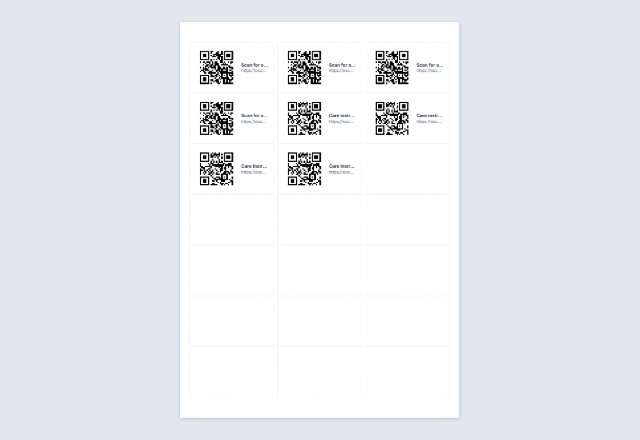 Numbered QR code labelsA different code on every Avery label, from a list
Related tools
Goes well with this one
Was this tool useful?
Notice: Generated via SnapPaperwork. For your own links and details. Do not make codes that pretend to be another business, or stick your code over someone else’s.
Something missing? Tell me what you need.
A QR code for your Google Form
Make your form in Google Forms, copy its link, paste it here and print a sign. People scan the code with their phone camera and fill in the form right there, without typing a long web address.
The code is a plain link to your form, made in your browser. It does not expire, nothing goes through this site, and the answers go to your Google Form as usual. This page never sees them.
How to make a QR code for a Google Form
-
Publish the form and copy its link
In Google Forms, publish the form, then choose Copy responder link. Tick “Shorten URL” first if you want a short forms.gle link.
-
Paste it here and test it
Scan the code with a phone that is not yours, and make sure the form opens and can be filled in.
-
Print the sign
Pick the words, such as “Fill in our form” or “Take our survey”, and a size, then print.
Where to find the link in Google Forms
Google’s help page says that responders cannot reach a form until it is published. To get the link for responders, you can use Preview, Published or Share, and then “Copy responder link”. After you publish, you can tick “Shorten URL” and then click “Copy”.
Copy the responder link, not the address of the page where you edit the form: the editing page is meant for you and your collaborators.
Source: Google Docs Editors Help: Publish & share your form with responders
Who can fill it in
Who can respond is set in the form, not here. Google’s help page says that when you publish, you can click “Manage” to choose who can respond, and that under “General access” you can give access to anyone with a link or to target audiences. The owner can also restrict access to a domain, a trusted audience or a group of users.
The same page notes that if you turn on “Limit to 1 response”, people must sign in to their Google Account to fill out the form. If you want people to answer from a sign on a wall, think about whether asking them to sign in is right for your form.
Source: Google Docs Editors Help: Publish & share your form with responders
Good uses
- Customer feedback or a short survey at the counter.
- Volunteer, class or club sign-up sheets on a notice board.
- Quizzes and quick polls in a classroom or at an event.
- Order or booking requests on a flyer or a window sign.
Before you print
- Keep the form short: the fewer questions, the more people finish it.
- Scan the printed sign with two different phones before you put it up.
- Edit the form itself if you need to change a question: the link stays the same, so the printed code keeps working.
- If you close the form to new answers, the code still opens it, but people can no longer send answers.
QR Code is a registered trademark of DENSO WAVE INCORPORATED. Google Forms is a trademark of its owner; SnapPaperwork is not connected with it.
Frequently asked questions
Which link do I paste: the edit link or the responder link?
The responder link. In Google Forms, choose Copy responder link from Preview, Published or Share. The edit link is meant for you and your collaborators.
Does the QR code expire?
No. It is a static link, so it works for as long as the form stays published.
Do people need a Google account to fill it in?
That depends on the form’s own settings. Google’s help page says, for example, that with “Limit to 1 response” turned on, people must sign in to their Google Account. Check the form’s settings and test it on a phone that is not signed in.
Can I change the form after I print the sign?
Yes. Edit the form in Google Forms: the link stays the same, so the printed code keeps working.
Can I see the answers on this page?
No. The answers go to your Google Form. This page only makes the code and never sees the form or the answers.
Is it free?
Yes. No account and no watermark.