Free Avery Labels QR Code Generator & Sheet LayoutMake any QR code, pick your label sheet, and every label gets the code and a line of text, lined up to print.
Static code · made in your browser · no watermark.
Pick a sign above.
More QR codes
Other things to put a QR code on
Each of these makes the code and the paper it goes on, ready to print.
 QR code scannerRead a code from a picture, a screenshot or the camera
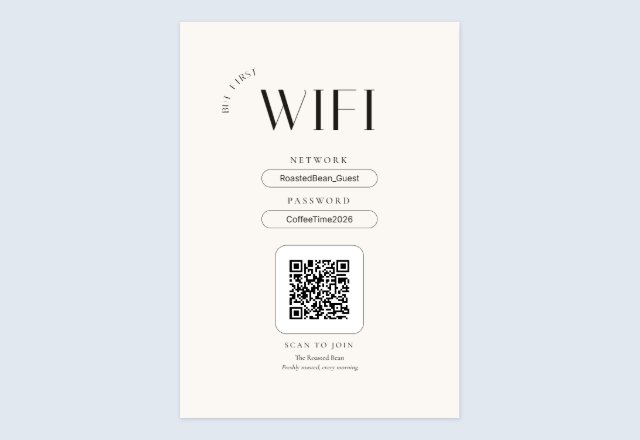 WiFi QR signGuests scan to join, no typing the password
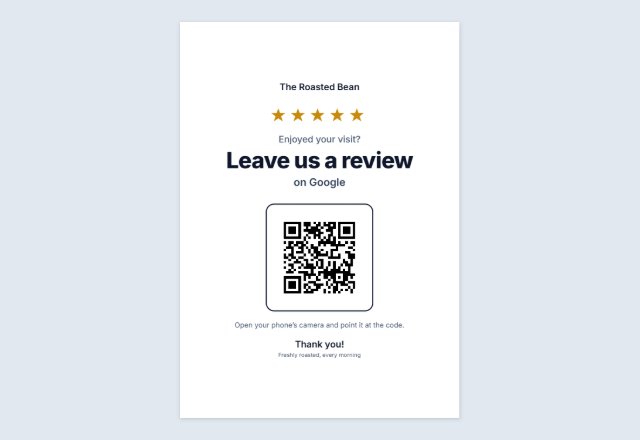 Google review QR signAsk for reviews at the counter
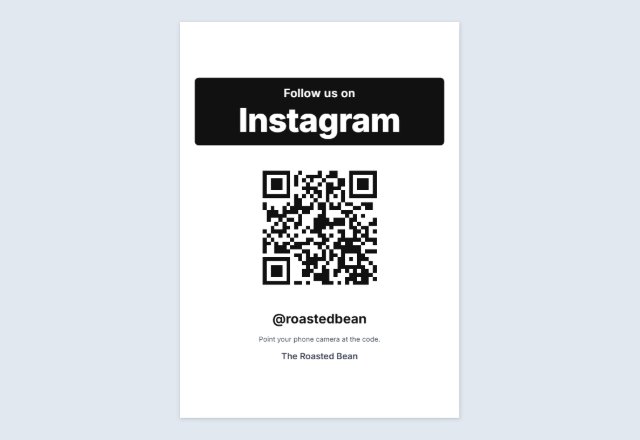 Instagram follow sign“Follow us” with your @name, for the counter
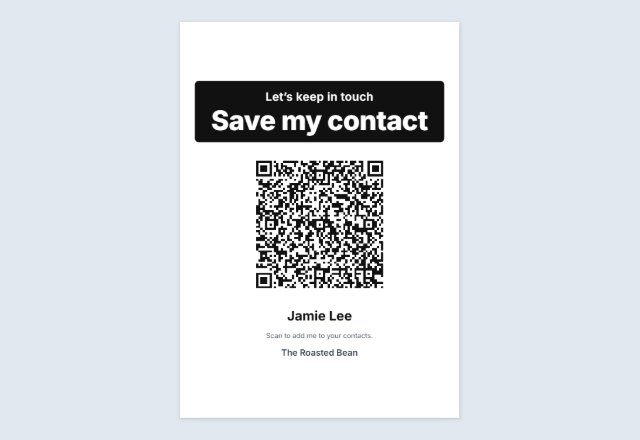 vCard contact QR codeOne scan saves your name, phone and email
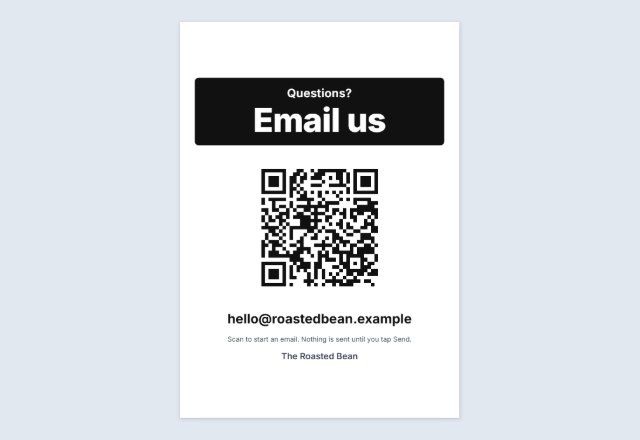 Email or text us signOpens a ready-to-send email or text to you
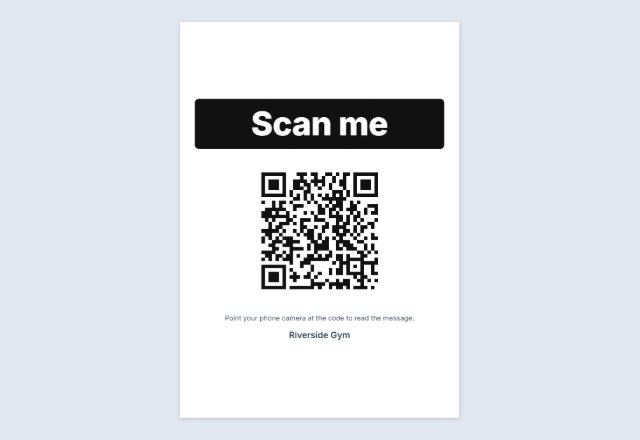 Text QR codeShows a message, clue or code word. No link
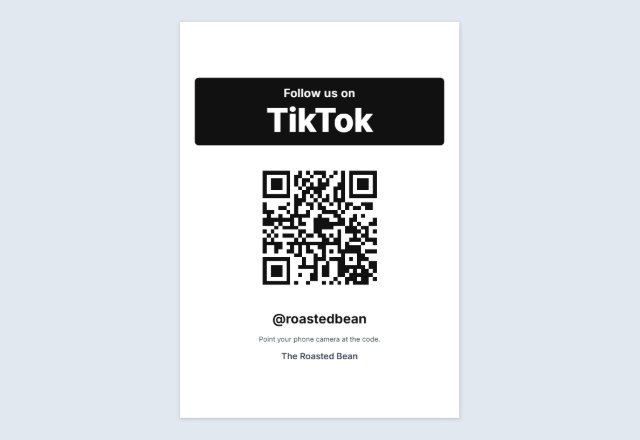 TikTok QR signOpens your profile or one video
 YouTube QR codeYour channel, a video or a playlist
 Facebook page QR codeYour page, group or event
 Venmo, PayPal or Cash App sign“Pay with” and your name, for a stall or a tip jar
 Menu QR sign“Scan for our menu” for every table
 Yelp or Tripadvisor signWorded to follow each site’s rules
 Wedding photo sharing signGuests add their photos to your album
 Wedding RSVP QR cards4 cards per sheet for the invitations
 Event check-in signRSVP or check in on their own phone
 Google Form QR codeLink to your form on a “Fill in our form” sign
 QR code for a PDFOpens a PDF you shared on Drive, Dropbox, OneDrive or your site
 Spotify & Apple Music QRA “Listen on” sign for your song, album or playlist
 Call us QR codeYour number ready to dial, on a “Call us” sign
 Google Maps QR codeA “Find us” sign that opens your place on the map
 Telegram QR codeYour username, channel or group, on a “Join us” sign
 Linktree QR codeOne code that leads to all your links
 Circle QR codeYour code in a round badge, in dots or rounded squares
 Sample QR codes for testingHarmless test codes, and one code at six sizes to print
 Bulk QR code generatorMany different codes from a list: sheets or a ZIP of files
 Business card with a QR codeYour details and a code that saves your contact, 10 per sheet
 Square or round QR stickersA sheet to print and cut, any size
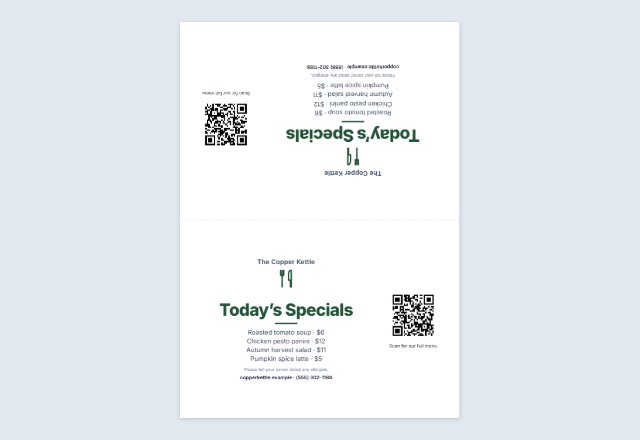 Table tent with a QR codeMenu, specials or offer folded on every table
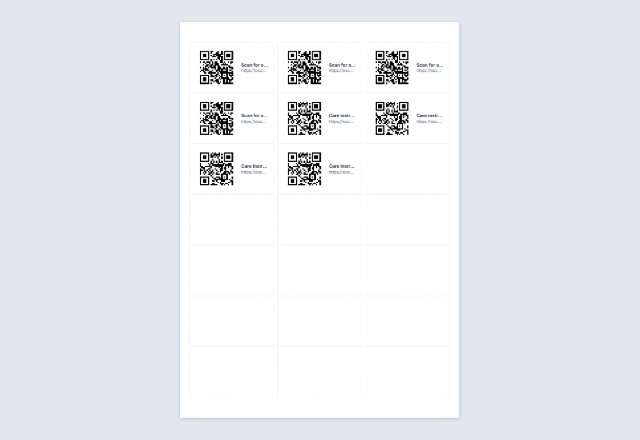 Numbered QR code labelsA different code on every Avery label, from a list
Related tools
Goes well with this one
Was this tool useful?
Notice: Generated via SnapPaperwork. For your own links and details. Do not make codes that pretend to be another business, or stick your code over someone else’s.
Something missing? Tell me what you need.
One QR code on a whole sheet of Avery labels
Make any QR code (a link, your WiFi, a contact card, a short text), pick the label sheet you have, and every label gets the code with a line of text beside it or under it, placed where the labels are. Print, peel and stick on boxes, bags, products, books or equipment.
Wide labels such as 5160 put the code on the left and the text on the right; taller labels put the text under the code. Already used part of a sheet? Start at the first free label.
How to print a QR code on Avery labels
-
Make the code
Choose what it opens and type the details. Add a short line of text under Look, such as “Scan for care tips”.
-
Choose your label sheet
Under Print size, pick the sheet number printed on your label pack, and the first free label.
-
Print a test page
Print on plain paper with the outlines, hold it over a label sheet against the light, then print on the labels.
Label sheets
Other brands often sell the same layouts under the Avery number. The label sizes were checked on Avery’s sites; the page margins are the usual ones for these sheets, so print a test page first.
- US Letter: 5160 and 8160 (30 per sheet, 2⅝ × 1 in), 5161 (20, 4 × 1 in), 5163 (10, 4 × 2 in), 5164 (6, 4 × 3⅓ in).
- A4: L7651 (65 per sheet, 38.1 × 21.2 mm), L7160 (21, 63.5 × 38.1 mm), L7163 (14, 99.1 × 38.1 mm), L7165 (8, 99.1 × 67.7 mm).
Small labels, simple codes
The code is as big as the label allows. On small labels such as L7651 or 5160, keep the content short (a short link rather than a long one, few contact details) so the squares stay big enough to scan. The page warns you when the code gets too small for the label.
If the print is a little off
Printers feed paper slightly differently. If every code is shifted the same way, use “Move right” and “Move down” (a minus number moves left or up), print a test page again, and check. Always print at 100% (“Actual size”), not “Fit to page”.
QR Code is a registered trademark of DENSO WAVE INCORPORATED. Avery is a trademark of its owner; SnapPaperwork is not connected with it.
Frequently asked questions
Can each label have a different code?
Not on this page: every label gets the same code. For a different code on each label, from a list, use the barcode label maker, which also makes QR codes.
My label sheet is not in the list. What can I do?
Pick the sheet with the same label size and number per sheet, and print a test page on plain paper first. Or print a sticker sheet and cut it yourself.
Can I use part of a sheet?
Yes. Set “Start at label” to the first free label; the labels before it stay blank.
Will the outlines print?
Only if you tick “Print the label outlines”, for a test page on plain paper. Leave it off when you print on the labels.
Is it free?
Yes. No account and no watermark.